Get your Takealot API key
Mar 10, 2026 by Dihan Stoltz · 4 min read
Looking for how to get your Takealot API key? This guide shows you exactly where to find it and how to generate a new one. Whether you're connecting TSeller or another third-party tool to your Takealot seller account, you'll need your API key to get started.
What is a Takealot API key?
Your Takealot API key allows external applications like TSeller to read and write data to your Takealot seller account. Here's what you need to know before you get your Takealot API key: You can only have one API key per Takealot account at a time. Only the account owner can generate an API key. Takealot only displays the API key once when you generate it — save it somewhere safe immediately. If you delete an API key, any applications using that key will lose access to your account.
Where to find your Takealot API key
Your Takealot API key is located in the Seller Portal under API Integration > Seller API > Authentication. Follow the steps below to find and generate your key.
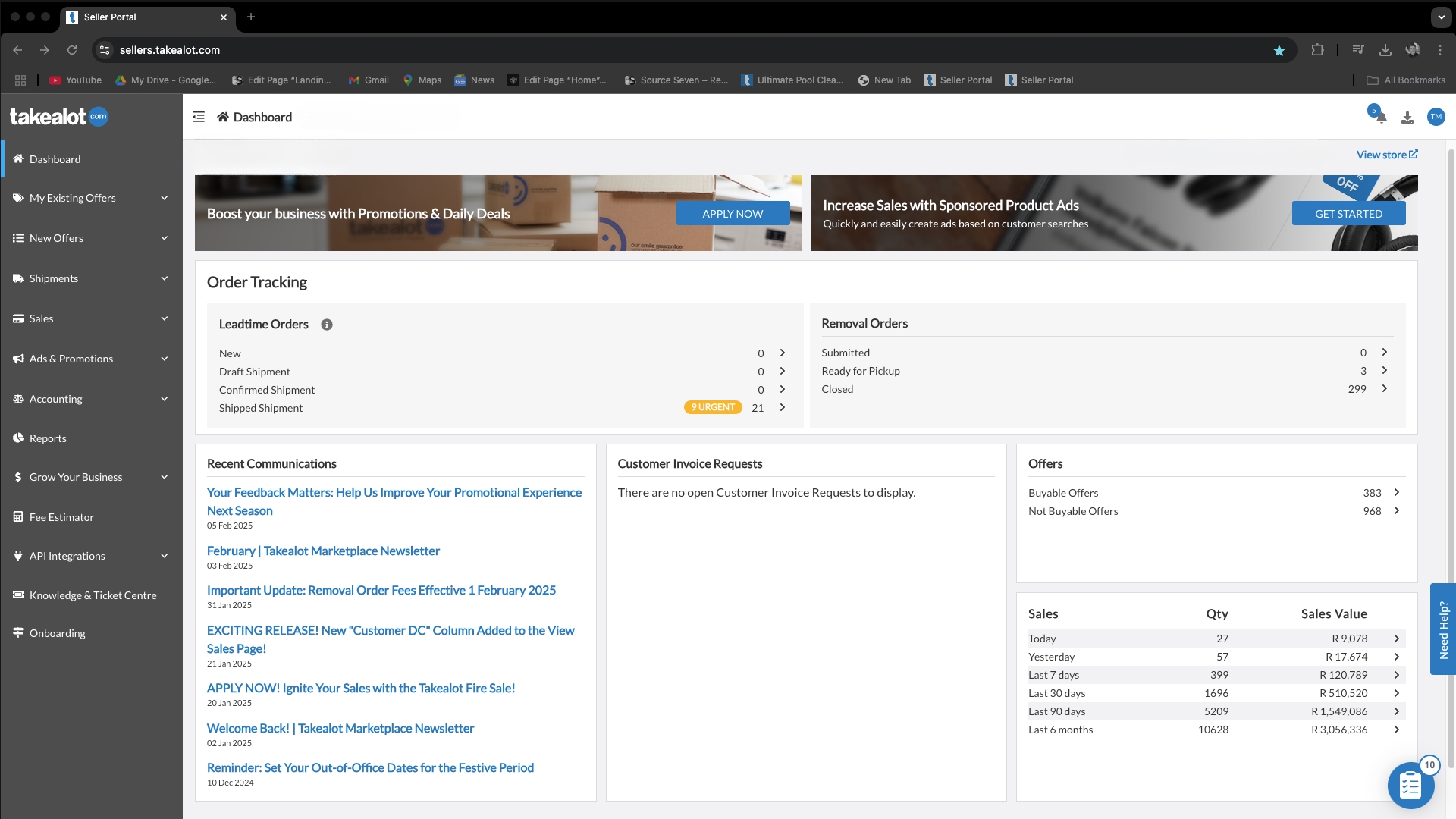
Step 1: Log into your Takealot Seller Portal
Go to your Takealot Seller Portal at https://seller.takealot.com and log in with your seller credentials. This is where you'll find your API key.
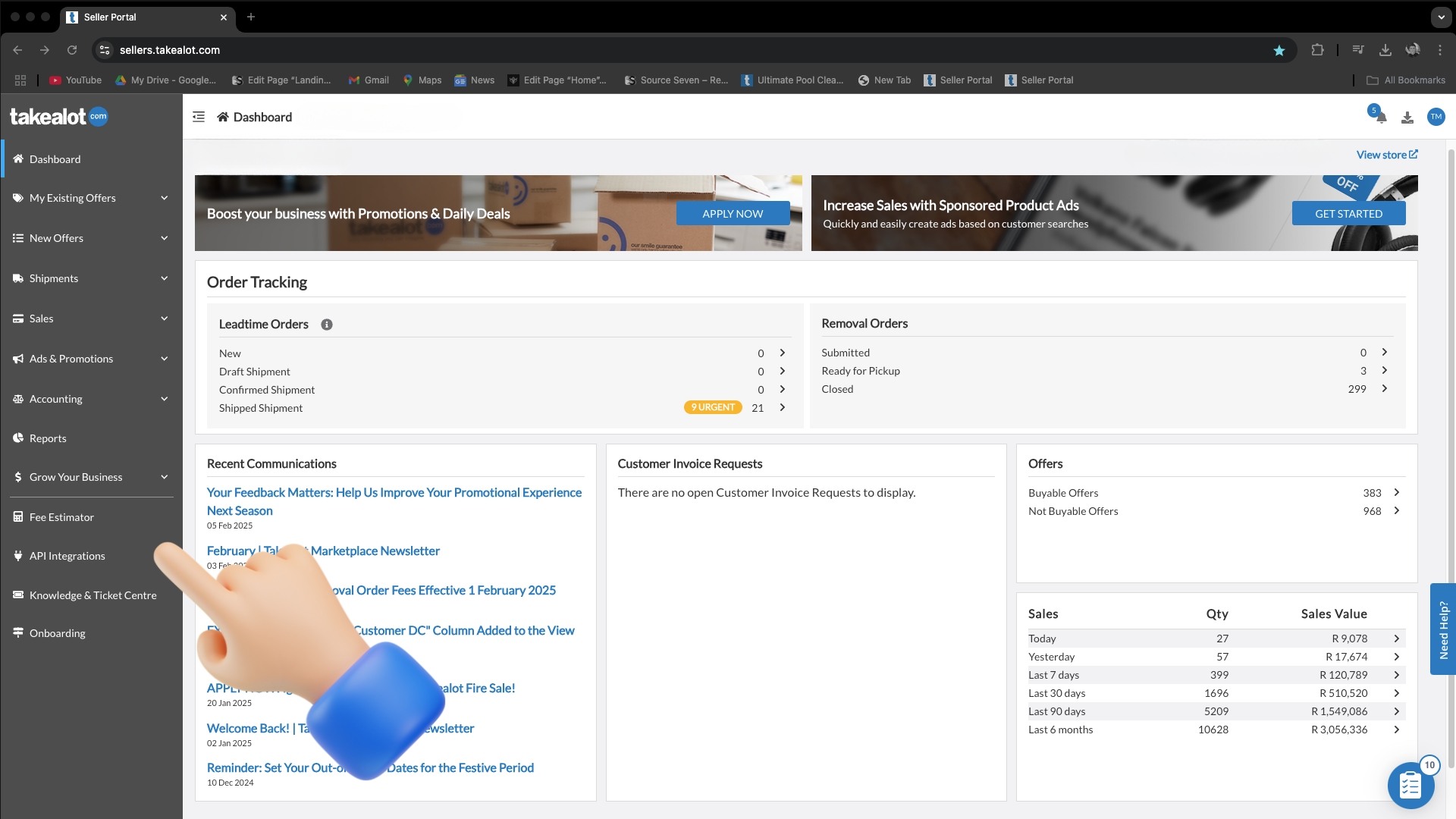
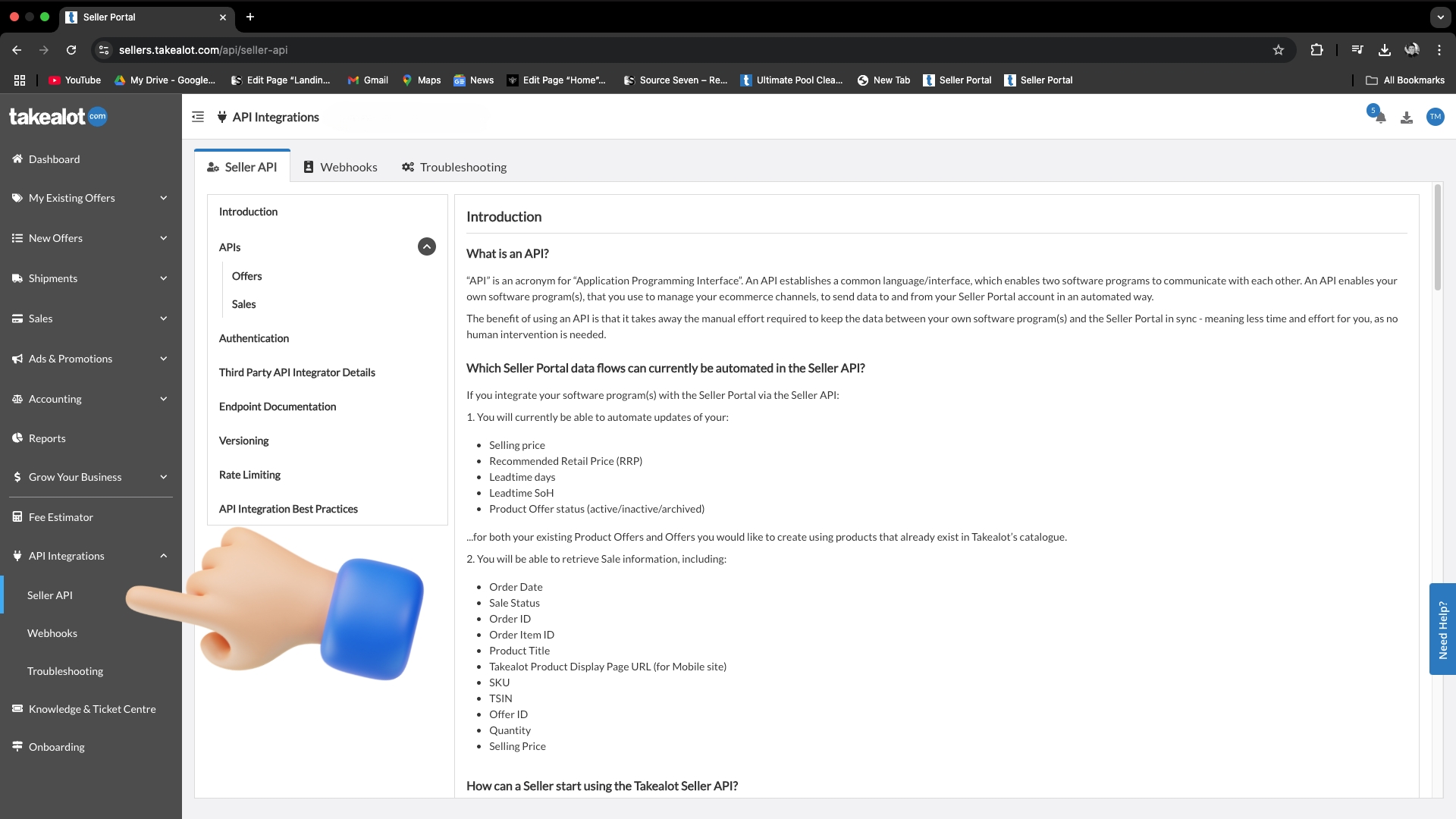
Step 2: Navigate to API Integration
In the left sidebar menu, click on 'API Integration' then select 'Seller API'. This is where Takealot stores your API key settings.
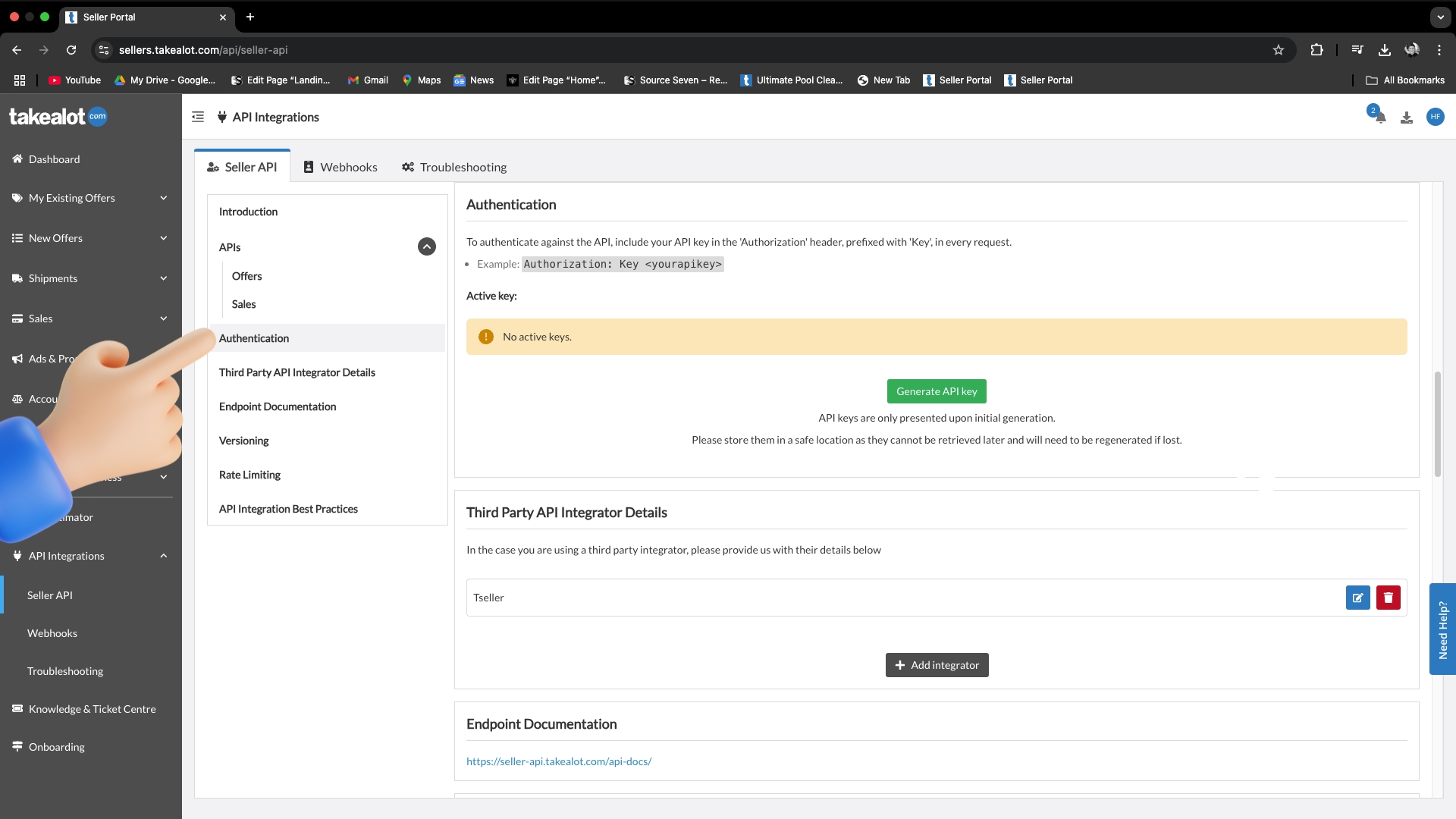
Step 3: Open Authentication
Select the 'Authentication' tab. You'll see one of two screens: 'No active keys' means you can generate a new Takealot API key. 'Key #1' means a key already exists on this account.
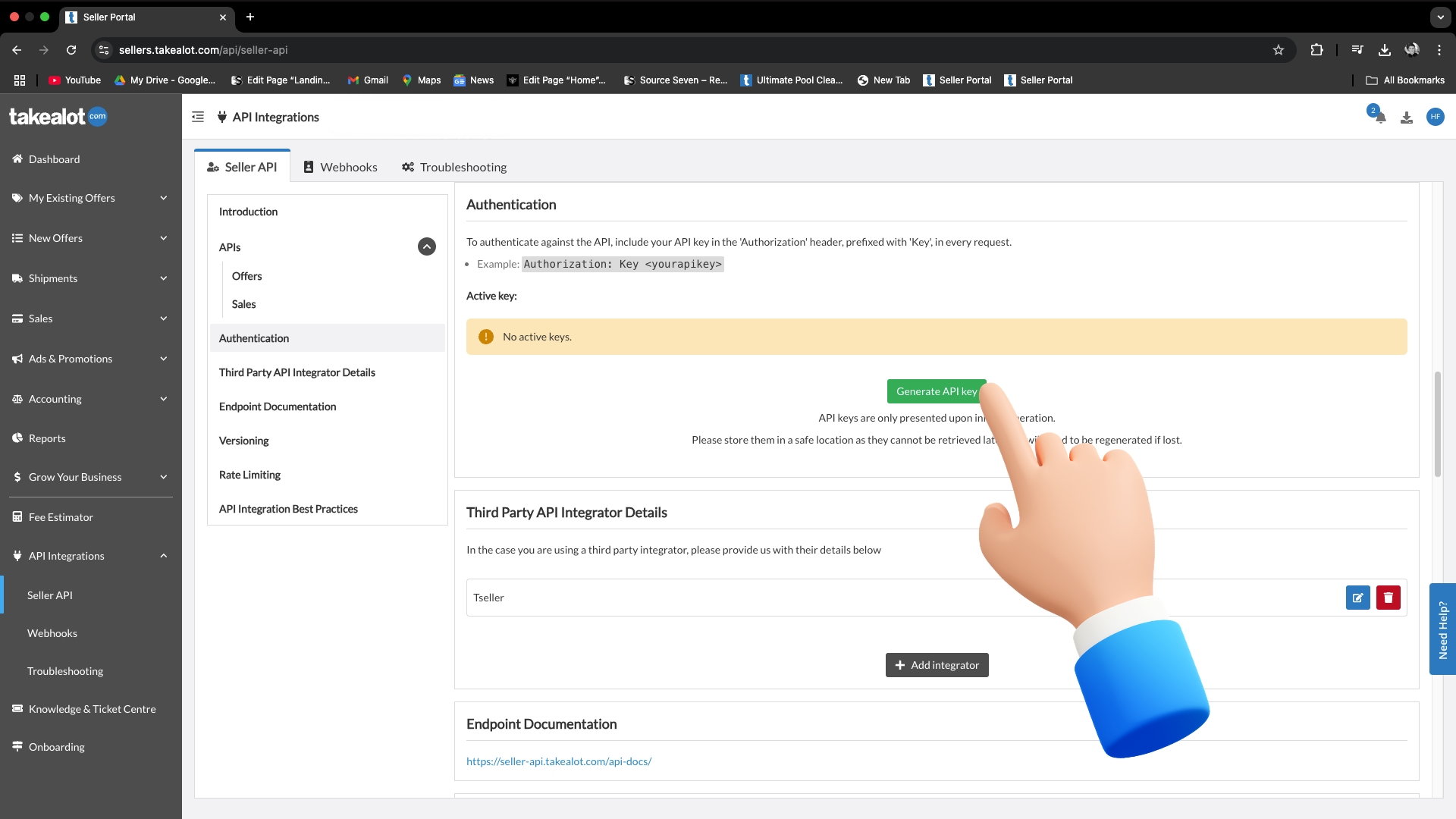
Step 4: Generate your Takealot API key
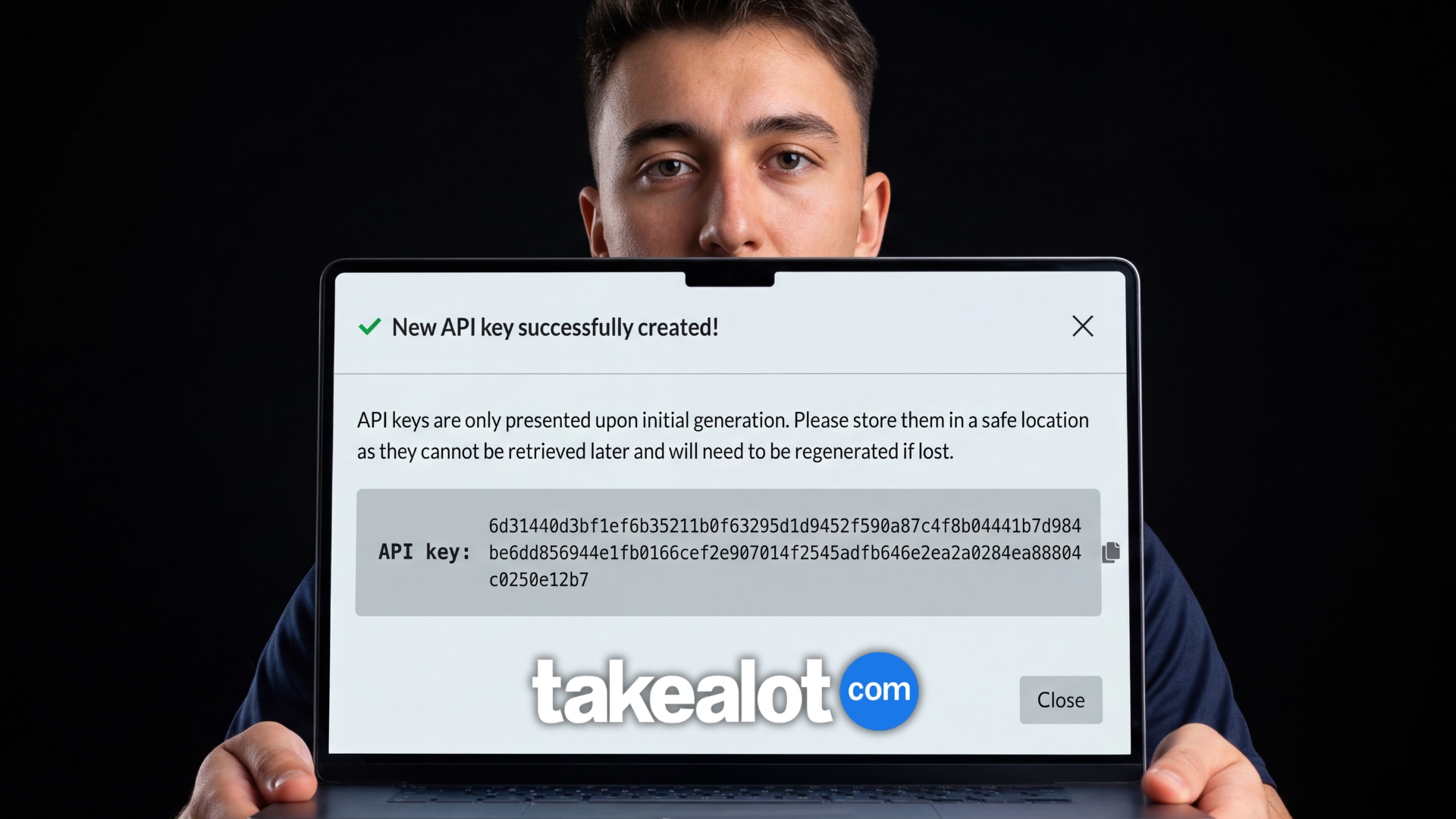
If you see 'No active keys', click 'Generate API Key' to create your new Takealot API key. A popup will display your key — a long string that looks like: API key:6d31440d3bf1ef6b35211b0f63295d1d9452f590a87c4f8b04441b7d984be6dd856944e1fb0166cef2e907014f2545adfb646e2ea2a0284ea88804c0250e12b7
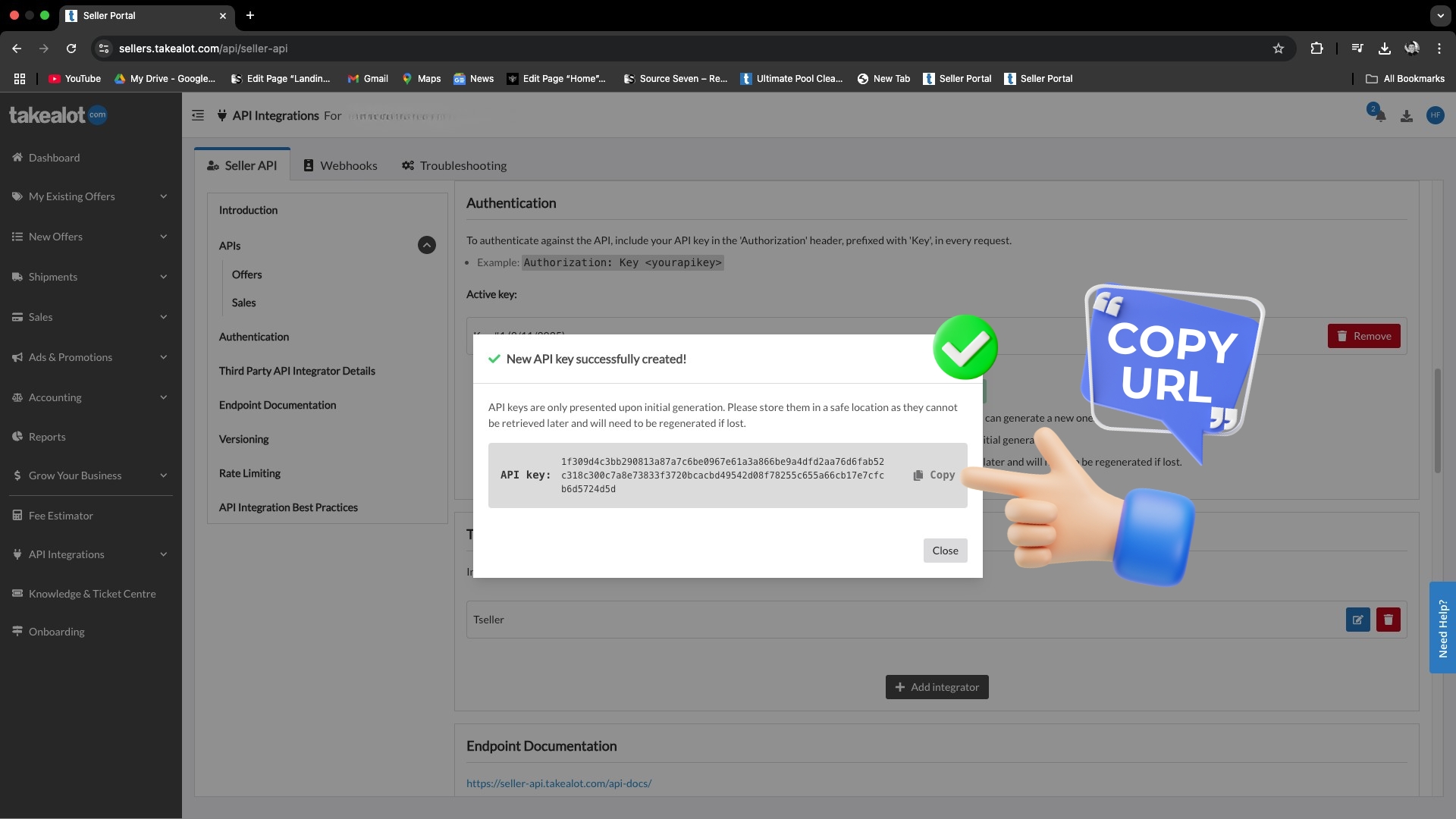
Step 5: Copy your Takealot API key
Copy the entire Takealot API key immediately — include all characters, no extra spaces. This is your only chance to see this key. Once you close the popup, your Takealot API key cannot be retrieved.
Already have an existing Takealot API key?
If you see 'Key #1' instead of 'No active keys', a Takealot API key was already generated for this account. You have two options: Find the existing API key wherever it was saved when first created, or delete the current key and generate a new one.
Using your API key across multiple platforms
Good news: your Takealot API key can be used with multiple applications at the same time. You don't need to generate a new key for each tool — simply use the same API key across TSeller, and any other platforms you connect. This means you can have TSeller, accounting software, and other integrations all running simultaneously with a single key.
How to delete and regenerate your Takealot API key
If you've lost your API key or need to revoke access for security reasons, you can delete and regenerate it. To delete: Click the 'Remove' button next to the existing key, then confirm by clicking 'Delete API key'. Once deleted, follow Steps 4 and 5 above to generate a new key. Just remember to update all your connected applications with the new key afterwards.
Connect your Takealot API key to TSeller
Once you have your Takealot API key, log into TSeller at tseller.co.za or through the mobile app. Navigate to account settings and paste your API key exactly as copied. TSeller will verify the connection and begin syncing your store data automatically.
Conclusion
Now you know how to get your Takealot API key. Remember: copy the entire key immediately, save it somewhere secure, and never share it publicly. If you lose your Takealot API key, you'll need to delete it and generate a new one. Need help connecting your API key? Contact our support team or check out our other guides.