TSeller features overview
Feb 8, 2026 by Dihan Stoltz · 12 min read
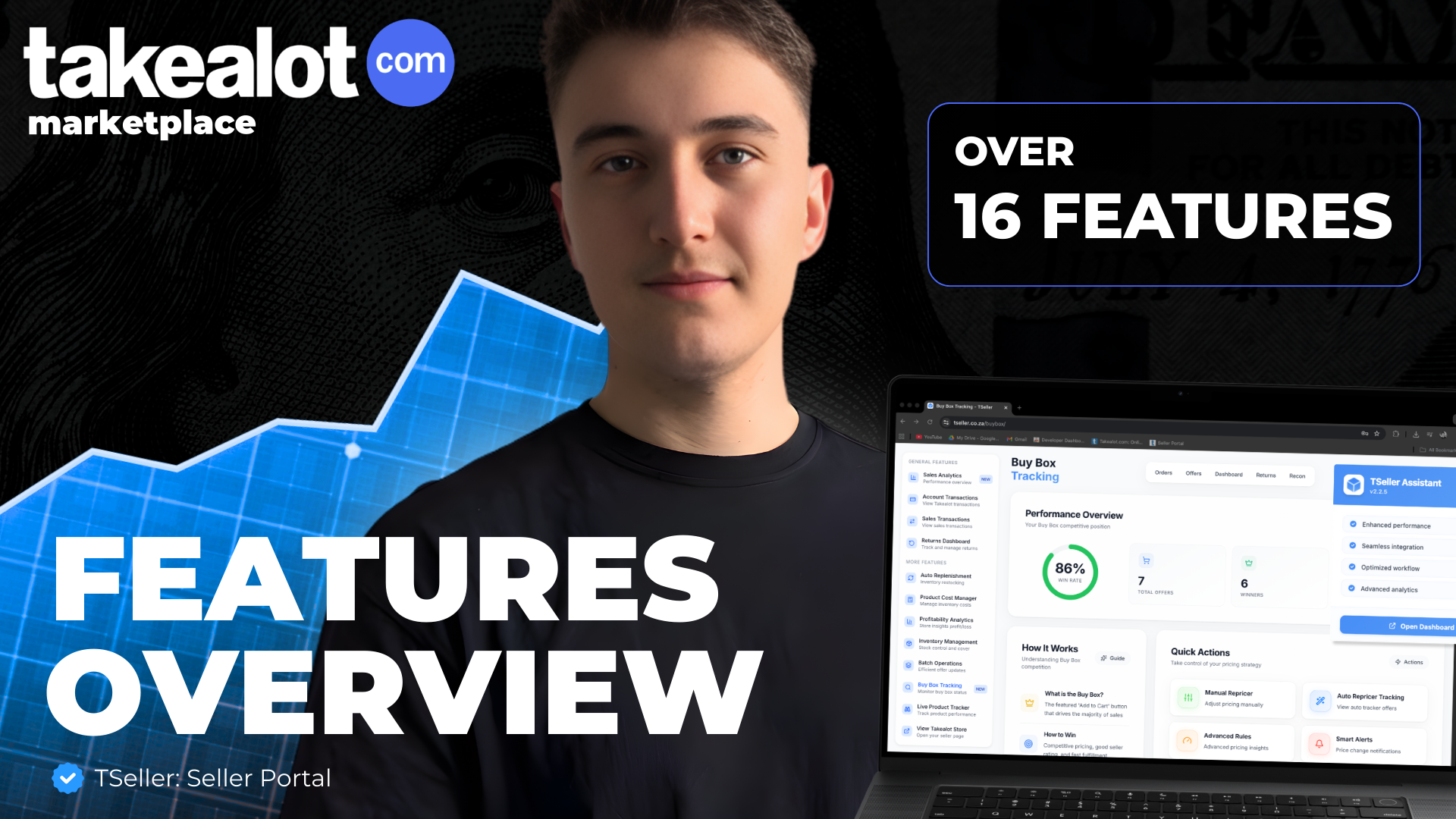
Running a successful Takealot business requires more than just great products. You need the right tools to stay competitive, manage inventory efficiently, and make data-driven decisions. TSeller is the all-in-one platform built specifically for Takealot sellers, combining Buy Box tracking, automated repricing, inventory management, analytics, and more into a single powerful dashboard. Whether you're just starting out or managing millions in sales, TSeller gives you the competitive edge you need to succeed. In this comprehensive guide, we'll walk through every feature and show you exactly how TSeller can transform your Takealot business.
Buy Box Tracking & Automated Repricing
The Buy Box is the single most important factor in driving sales on Takealot. If you're not in the Buy Box, you're invisible to most customers. TSeller's Buy Box tracking and repricing tools ensure you win more Buy Boxes while protecting your profit margins.
6-Minute Buy Box Checking
TSeller checks your Buy Box status every 6 minutes—the fastest in the industry. While competitors check every 30-60 minutes (or worse, manually), you'll know within minutes when you lose the Buy Box. This speed advantage means you can respond to competitor price changes immediately, capturing sales that would otherwise be lost. Our data shows that faster repricing directly correlates with higher Buy Box win rates.
Automated Repricing with Safety Controls
Set your minimum price, target price, and maximum price for each product. TSeller automatically adjusts your prices to win the Buy Box while never going below your minimum profitable price. No more manual price checking. No more racing to the bottom. Just intelligent, automated repricing that works 24/7 to maximize your sales and margins. Our users report Buy Box win rates increasing from 40% to 78% on average after implementing automated repricing.
Intelligent Repricing Strategies
Not all products should use the same repricing strategy. TSeller allows you to set product-specific or category-specific repricing rules. High-velocity competitive products can use aggressive repricing, while premium or unique products can maintain higher margins with conservative repricing. The system considers competitor pricing, fulfillment methods, your historical win rates, and product profitability to optimize each repricing decision.
Real-Time Buy Box Alerts
Get instant push notifications on mobile when you lose the Buy Box on key products. Customize alerts by product importance so you're only notified about what matters. Whether you're in meetings, with family, or away from your desk, you'll never miss a critical Buy Box loss again.
Comprehensive Analytics & Reporting
Data-driven decisions separate successful sellers from those who struggle. TSeller provides comprehensive analytics covering every aspect of your business, turning complex data into actionable insights.
Buy Box Performance Analytics
Track your Buy Box win rate by product, category, and overall. See historical trends to understand patterns and identify opportunities. Analyze which products consistently win the Buy Box and which ones struggle. Use this data to optimize your pricing strategy and product portfolio. The analytics dashboard shows your win rate over time, helping you measure the impact of strategy changes.
Profitability Analytics
Revenue means nothing without profit. TSeller automatically calculates your true profit margin by pulling all costs directly from Takealot—including commission fees, payment processing fees, promotional discounts, and uptake success fees. See which products are actually profitable and which are losing money despite high sales volume. Many sellers are shocked to discover their best-selling products aren't their most profitable ones.
Sales Velocity & Performance Metrics
Track units sold per day, revenue trends, and sales patterns. Identify fast-movers that deserve more inventory investment versus slow-movers that tie up capital. See which products are gaining momentum and which are declining. Use velocity data combined with profitability metrics to make informed decisions about product portfolio optimization.
Competitor Price Intelligence
Know what your competitors are charging at all times. TSeller tracks competitor pricing every 6 minutes, showing you price trends, patterns, and changes. Are competitors raising prices on weekends? Lowering them overnight? Running promotions? This competitive intelligence allows you to time your repricing for maximum advantage and avoid unnecessary price wars.
Custom Reports & Exports
Generate detailed reports on any aspect of your business. Export data to Excel for deeper analysis or to share with accountants and business partners. Track performance month-over-month, analyze seasonal trends, and measure the ROI of your strategies. All your critical business data in one place, ready to export and analyze.
Intelligent Inventory Management
Stock-outs lose sales. Overstocking ties up capital. TSeller's inventory management tools help you maintain optimal stock levels across all distribution centers.
Real-Time Stock Level Monitoring
See current stock levels for all your products across all Takealot distribution centers in real-time. Access this data on web or mobile from anywhere. No more logging into Takealot and checking products one by one. Your entire inventory status at a glance, updated continuously throughout the day.
Low Stock Alerts
Get automatic alerts when any product drops below your defined threshold. Set different alert levels for different products based on their importance and replenishment lead times. Never run out of stock on your best-sellers again. The alerts give you time to reorder before you're completely out, preventing costly stock-outs.
Days of Inventory Remaining
TSeller calculates how many days until you'll run out of each product based on current stock levels and sales velocity. This forward-looking metric helps you prioritize reordering and prevents stock-outs. If a product shows 5 days remaining and has a 14-day supplier lead time, you know you need to order immediately.
Stock-Out History & Analysis
Track how often your products go out of stock. Every stock-out is a lost sale and damages your Buy Box eligibility. TSeller shows you which products frequently stock out so you can adjust reorder points and safety stock levels. Aim for a stock-out rate below 2% to maintain healthy sales and seller metrics.
Auto Replenishment System
Manually calculating how much stock to send to each distribution center is time-consuming and error-prone. TSeller's Auto Replenishment feature automates this entire process.
Smart DC Balancing
TSeller analyzes sales patterns across all distribution centers and recommends optimal stock distribution. Some DCs sell faster than others. Instead of guessing, use data to ensure each DC has the right amount of stock. Prevent situations where one DC is out of stock while another has excess inventory.
Bulk Shipment Creation
Identify all products that need replenishment across all DCs. TSeller calculates exactly how many units of each SKU to send to each location. Export the file and import it directly into Takealot's system in minutes. What used to take hours now takes less than 15 minutes for 35-40 SKUs or more.
Replenishment Recommendations
Based on sales velocity, current stock levels, and lead times, TSeller recommends when and how much to reorder. These data-driven recommendations help you maintain optimal inventory levels—never too much, never too little. Reduce capital tied up in inventory while ensuring you never miss a sale due to stock-outs.
Promotion Management Tools
Takealot runs multiple promotional events throughout the year—Blue Dot Sales, Clearance Sales, Daily Deals, and more. Managing these promotions efficiently can dramatically increase sales during peak periods.
Bulk Promotion Application
Apply to multiple promotions with dozens of SKUs in minutes instead of hours. Select products, apply discounts in bulk, and export the file to import directly into Takealot. No more manually configuring each SKU individually. This time-saving feature is especially valuable during Black Friday and other major sales events.
Promotional Performance Tracking
See exactly which sales came from specific promotions. Track performance across Blue Dot Sales, Clearance Sales, and other promotional events. Understand which products perform well in promotions and which don't. Use this historical data to make informed decisions about future promotional participation—enter the promotions that drive sales, avoid the ones that just erode margins.
Discount Impact Analysis
Before entering a promotion, see exactly how the discount will affect your profitability. TSeller calculates profit margins after all fees, discounts, and costs. If a 15% promotional discount drops you below profitable pricing, you'll know before entering the promotion. Protect your margins while maximizing promotional opportunities.
Multi-Platform Access: Web, iOS & Android
Manage your Takealot business from anywhere on any device. TSeller provides full-featured applications for web, iPhone, and Android, all synced in real-time.
Web Dashboard
The complete TSeller experience on desktop. Large-screen analytics, bulk operations, detailed reports, and comprehensive management tools. Perfect for deep work sessions, strategic planning, and detailed analysis. Access from any browser—no installation required.
iOS Mobile App
Full TSeller functionality on your iPhone. Check Buy Box status, view inventory levels, receive push notifications, and make quick pricing adjustments—all from your pocket. Available on the App Store. Whether you're commuting, in meetings, or away from your desk, your business is always accessible.
Android Mobile App
Complete TSeller features on Android devices. Monitor your business, respond to alerts, check analytics, and manage inventory on the go. Available on Google Play Store. The mobile apps aren't simplified versions—they're full-featured platforms designed specifically for mobile management.
Real-Time Sync
All platforms sync in real-time. Make a change on mobile, see it instantly on web. Receive an alert on your phone, take action on your laptop. Your data is always current across all devices, giving you flexibility to work however and wherever is most convenient.
Smart Notifications & Alerts
Stay informed about critical events without constant monitoring. TSeller's intelligent alert system notifies you only about what matters, when it matters.
Customizable Alert Priorities
Set different alert levels for different products. Your top 10 revenue-generating products might warrant immediate alerts. Less critical products might use daily summary notifications. Customize the system to match your business priorities and workflow preferences.
Push Notifications
Receive instant push notifications on mobile for Buy Box losses, low stock alerts, competitor price changes, and performance metric issues. These time-sensitive alerts let you respond immediately to critical situations. You maintain control without constant manual monitoring.
Email Digests
Receive daily or weekly summary reports via email. These digests provide an overview of your business performance, key metrics, and trends without overwhelming you with constant notifications. Perfect for periodic reviews and strategic planning.
Alert History & Tracking
See a complete history of all alerts and how you responded. Track patterns—are certain products consistently triggering alerts? This historical view helps you identify systemic issues and optimize your operations over time.
Financial Management & Profit Tracking
Understanding your true profitability is essential for sustainable growth. TSeller provides detailed financial tracking and profit analysis.
Automatic Cost Calculation
TSeller automatically pulls all Takealot fees and costs directly from the platform. No manual data entry. No spreadsheets. The system calculates your true profit margin including commission fees (10-15% depending on category), payment processing fees, shipping costs for non-TFH sellers, promotional discounts and uptake fees, and return costs allocation.
Product-Level Profitability
See profit margins for every single product. Identify your most profitable items—these deserve more investment and promotion. Find products that generate revenue but little or no profit—these might need price adjustments or discontinuation. Make portfolio decisions based on profitability, not just sales volume.
Margin Erosion Alerts
Get notified when competitive pressure or cost increases push your selling price close to your minimum profitable price. These early warnings give you time to decide whether to fight for the Buy Box at thin margins or let competitors have those low-margin sales while you focus on more profitable opportunities.
ROI Analysis
Calculate return on investment for each product by comparing profit to capital invested in inventory. Products with high ROI deserve more capital allocation even if absolute profit is lower. This metric helps you deploy your capital efficiently and maximize overall business returns.
Takealot Integration & Data Sync
TSeller integrates directly with Takealot's systems to provide seamless data flow and management capabilities.
Secure API Integration
TSeller connects to your Takealot seller account through secure API integration. Your credentials are encrypted and stored securely. The system accesses only the data necessary to provide its features—stock levels, pricing, sales data, and fee information. You maintain complete control and can revoke access at any time.
Real-Time Data Synchronization
All data syncs in real-time between Takealot and TSeller. When you make a price change in TSeller, it appears on Takealot within minutes. When sales occur on Takealot, they appear in TSeller analytics immediately. This real-time sync ensures you're always working with current data.
Bulk Import & Export
Import product data from Takealot into TSeller for bulk operations. Export data from TSeller to import back into Takealot. This bi-directional data flow makes bulk operations fast and error-free. Update pricing for 100 products in minutes instead of hours of manual work.
User-Friendly Interface & Experience
Powerful features mean nothing if they're difficult to use. TSeller combines comprehensive capabilities with an intuitive interface that makes complex operations simple.
Clean, Modern Design
The TSeller interface is clean, uncluttered, and easy to navigate. Important information is prominent and accessible. Advanced features are available but don't overwhelm. Whether you're a tech-savvy seller or just starting out, you'll find TSeller intuitive and approachable.
Quick Onboarding
Get started in minutes, not hours or days. Connect your Takealot account, set your pricing boundaries, and you're ready to go. The system includes helpful tutorials and tooltips to guide you through initial setup. Our support team is available to assist if you need help.
Customizable Dashboards
Configure your dashboard to show the metrics and information most important to your business. Pin your favorite reports, customize alert preferences, and arrange modules to match your workflow. TSeller adapts to how you work rather than forcing you into a rigid structure.
Customer Support & Success
We don't just provide software—we provide support to help you succeed on Takealot.
Responsive Support Team
Our support team understands Takealot selling because they manage Takealot stores themselves. When you have questions or issues, you're speaking with people who use TSeller daily and understand your challenges. Contact us via email, WhatsApp, or through the app. We respond quickly and provide practical, actionable guidance.
Knowledge Base & Tutorials
Access comprehensive documentation, video tutorials, and best practices guides. Learn how to use every feature effectively. Understand strategies that successful sellers use. The knowledge base is constantly updated with new content based on user questions and platform changes.
Feature Requests & Updates
TSeller is continuously evolving based on user feedback. Request features you need. Vote on features other users have requested. We regularly release updates that add functionality and improve existing features. Your input directly shapes the product roadmap.
Security & Reliability
Your business data and account security are our top priorities. TSeller implements enterprise-grade security measures to protect your information.
Data Encryption
All data transmitted between TSeller and your devices is encrypted using industry-standard protocols. Your Takealot credentials and business data are encrypted at rest and in transit. We implement the same security standards used by banks and financial institutions.
Regular Backups
Your data is automatically backed up multiple times daily. In the unlikely event of a system issue, your information is safe and recoverable. We maintain redundant systems to ensure continuous availability and data integrity.
Uptime & Reliability
TSeller is built on reliable cloud infrastructure with redundancy and failover systems. Our uptime consistently exceeds 99.9%. Your business depends on reliable tools—we take that responsibility seriously. Regular maintenance happens during low-traffic periods to minimize any impact.
Conclusion
TSeller isn't just another software tool—it's a comprehensive business management platform built specifically for Takealot sellers by people who run Takealot businesses themselves. Every feature exists because we've faced the same challenges you face. We've lost sales to stock-outs. We've spent hours manually managing prices. We've struggled to understand which products are actually profitable. We built TSeller to solve these problems not just for ourselves, but for every Takealot seller who wants to compete effectively and grow profitably. Whether you're selling a few products or managing a large catalog, whether you're just starting or doing millions in revenue, TSeller scales with your business. The tools you need today, and the advanced features you'll want as you grow, all in one platform. Start your 14-day free trial today. No credit card required. Experience every feature on web, iOS, and Android. See for yourself how TSeller can transform your Takealot business. Join thousands of sellers who've increased their Buy Box win rates, reduced time spent on manual tasks, and grown their profits using TSeller.