
Takealot Staff Access
Nov 9, 2026 by Dihan Stoltz · 7 min read
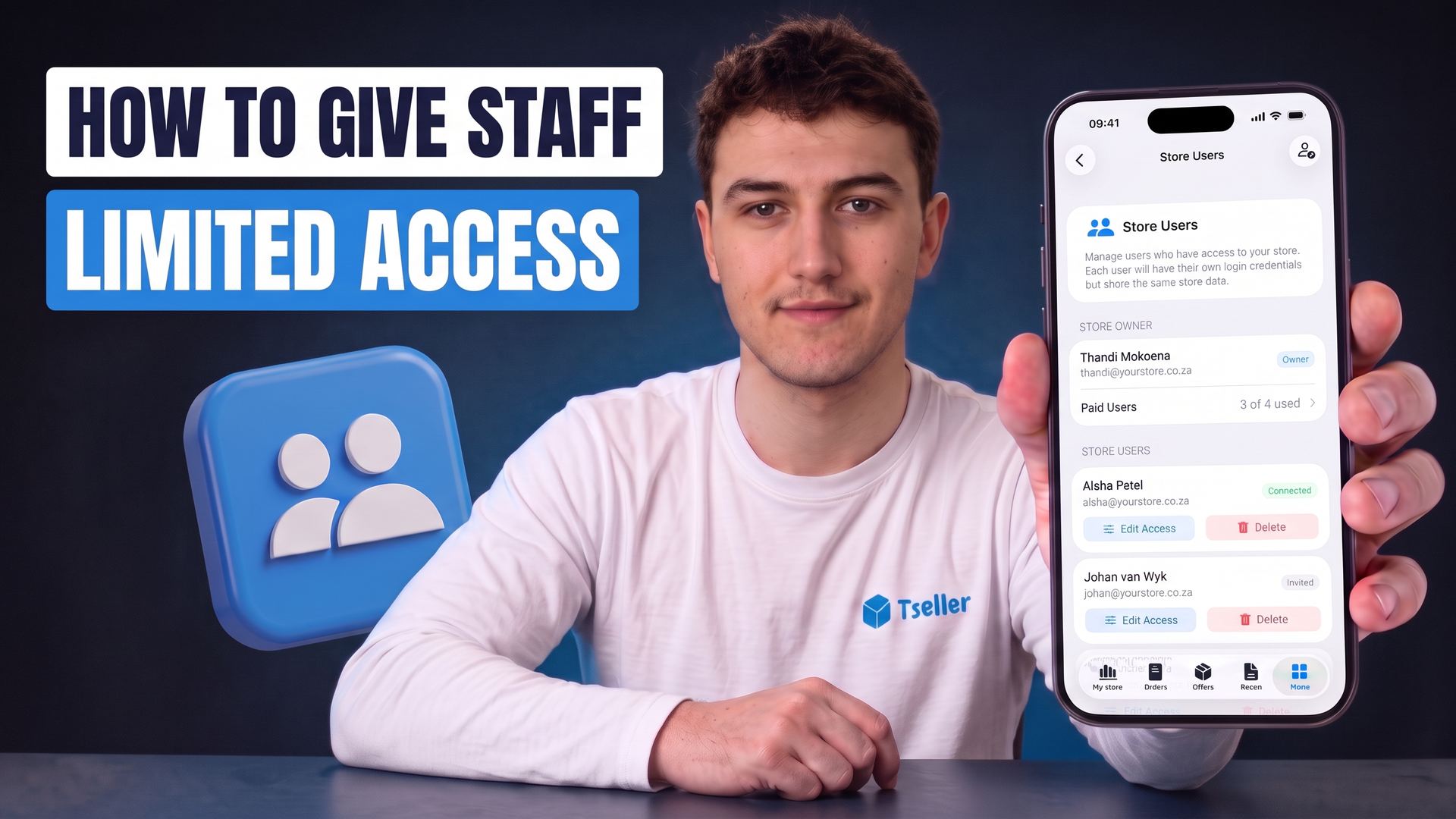
Most Takealot sellers end up sharing one password with their accountant, warehouse team or virtual assistant. Everyone then sees your costs and profit, can change prices and stock, and keeps access until you change the password for everyone. TSeller's Additional Users gives each person their own login to your account, with only the pages you choose and your costs and profit hidden if you want. This guide shows how to add a team member, what each role and permission does, ready-made setups for an accountant, warehouse team and VA, how to remove someone instantly and what it costs.
Why You Shouldn't Share Your Takealot Password
A shared login is the fastest way to give someone access, and the riskiest.
Takealot's Seller Portal has its own users for the portal itself. TSeller's Additional Users does the same for TSeller, where your costs, profit, repricer and AI live.
What Additional Users Does
Additional Users adds your staff to your own TSeller account, under your plan.
How to Add a Team Member
Adding someone takes about a minute.
Team Member Roles
Start with a role, then fine-tune the pages. Changing any page turns the role into Custom.
Role | Pages | Costs & Profit |
|---|---|---|
| Full access | Every page | Yes |
| Operations | 17 pages | Off |
| Orders and returns | 3 pages | Off |
| Custom | You choose | You choose |
Operations covers everything except the Accounts pages. Orders and returns opens the Dashboard, Orders and Returns. New team members start on Full access until you change it.
Choose Exactly Which Pages Each Person Sees
Every page in TSeller has its own switch, grouped the way the app's menu is.
Keep Your Costs and Profit Private
See costs and profit is the most important switch. With it off, a team member loses the Profitability and Product Costs pages, and every profit, break-even and margin figure is hidden for them: on the Buy Box page, in exports, in promotion cost breakdowns and in Sponsored Ads. TSeller AI leaves those figures out of its answers for them too, so nobody can ask the AI what your margins are.
Ready-Made Setups for Your Team
These are good starting points. Pick Custom and switch on the pages listed.
What Your Team Sees When They Sign In
A team member signs in with their own email and lands in your account. The menu only shows the pages you turned on. If they open a page they don't have, TSeller shows No access to this page and tells them to ask you to turn it on, and their own Additional Users page lists exactly what they can open. If you have several Takealot stores, they can switch between them without changing the store you're working in. TSeller AI follows the same pages and cost settings for them.
Change or Remove Access Instantly
Open a team member in Settings › Additional Users to change their pages, then click Save Changes. To take access away completely, click Remove User. Their TSeller login and invite link are deleted, and they're signed out straight away on every device, with no support ticket and no waiting. Removing someone doesn't lower your bill by itself, so reduce your users in Billing if you won't replace them.
What Only the Owner Can Do
Some settings stay with the account owner, whatever access you give.
Pricing
TSeller Pro is R199 per month and includes you, the owner. Each additional user is R100 per month, paid by card. If you add someone part-way through the month, the first charge only covers the days until your renewal, and there is nothing to pay during your free trial. If you subscribe through the App Store or Google Play, extra users are added by card, separately from your app plan. You can have up to 21 users on one account.
Conclusion
Sharing one Takealot password puts your costs, profit and prices in everyone's hands and makes it hard to take access back. With TSeller's Additional Users, every person gets their own login, only the pages they need and your margins hidden, and you can remove them in one click. Give them access, then let TSeller's Takealot AI agent take care of the Seller Portal work. Start your free 14-day trial at https://tseller.co.za, or if you already use TSeller, open Settings › Additional Users and add your first team member.