Video Tutorial
Overview
What You'll Need
Step-by-Step
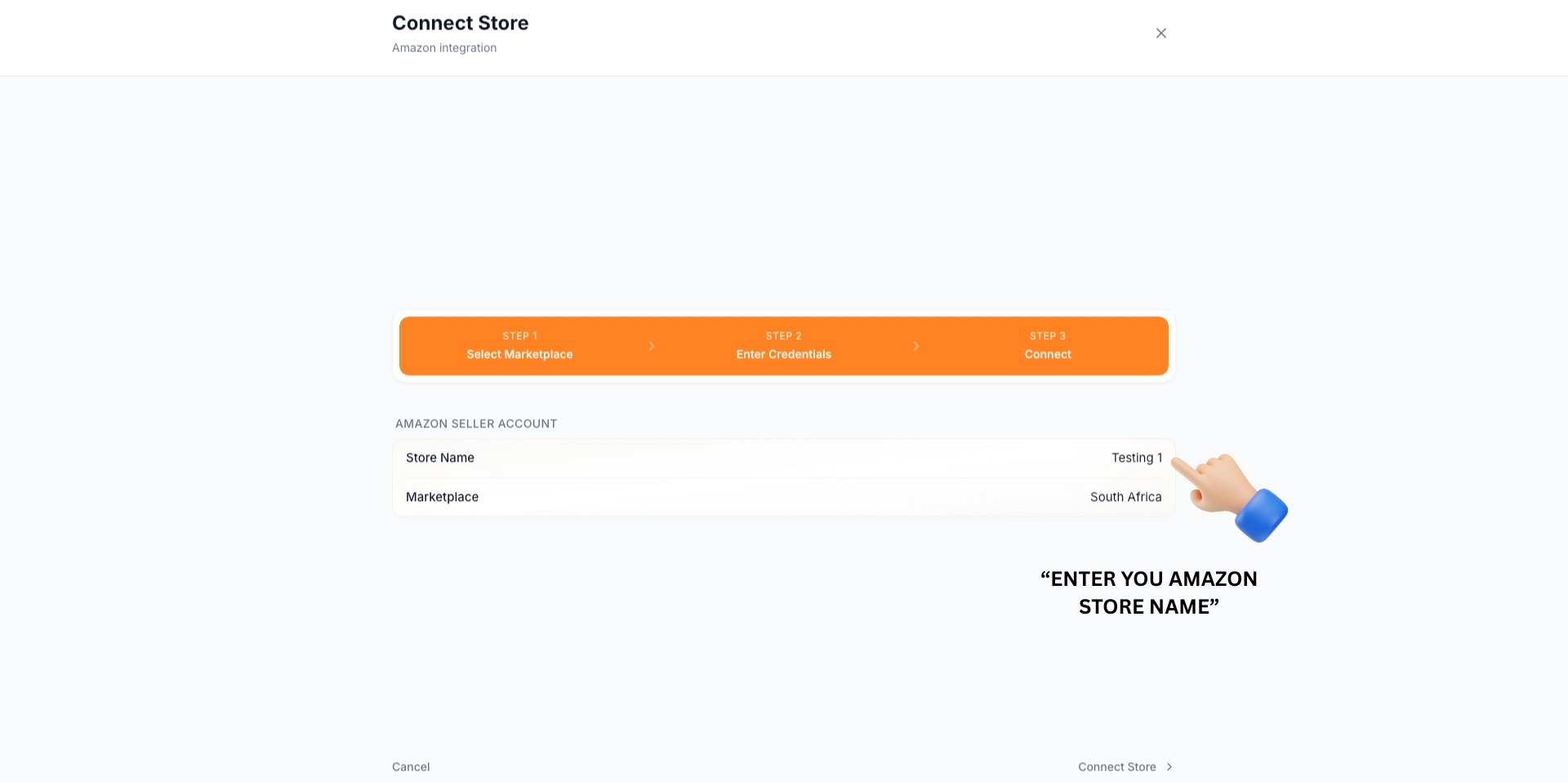
Enter your Amazon store name
From TSeller › Settings › Integrations, click Connect on the Amazon card. In the Connect Store dialog that opens, type a name for your store in the Store Name field — this helps you identify it later if you connect multiple Amazon accounts. The Marketplace is set to South Africa.
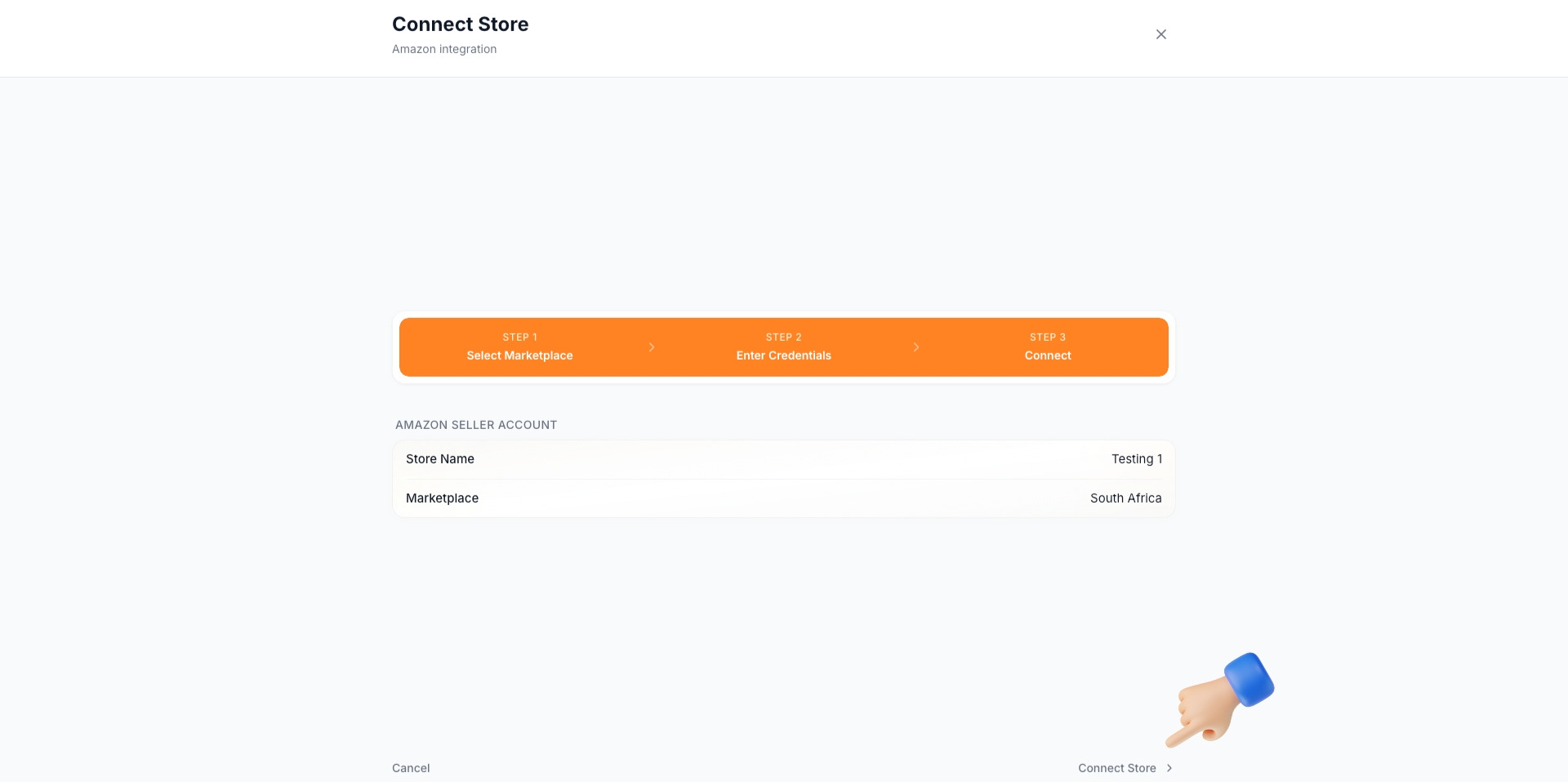
Click Connect Store
Click Connect Store at the bottom-right of the dialog. TSeller will redirect you to Amazon Seller Central to authorize access.
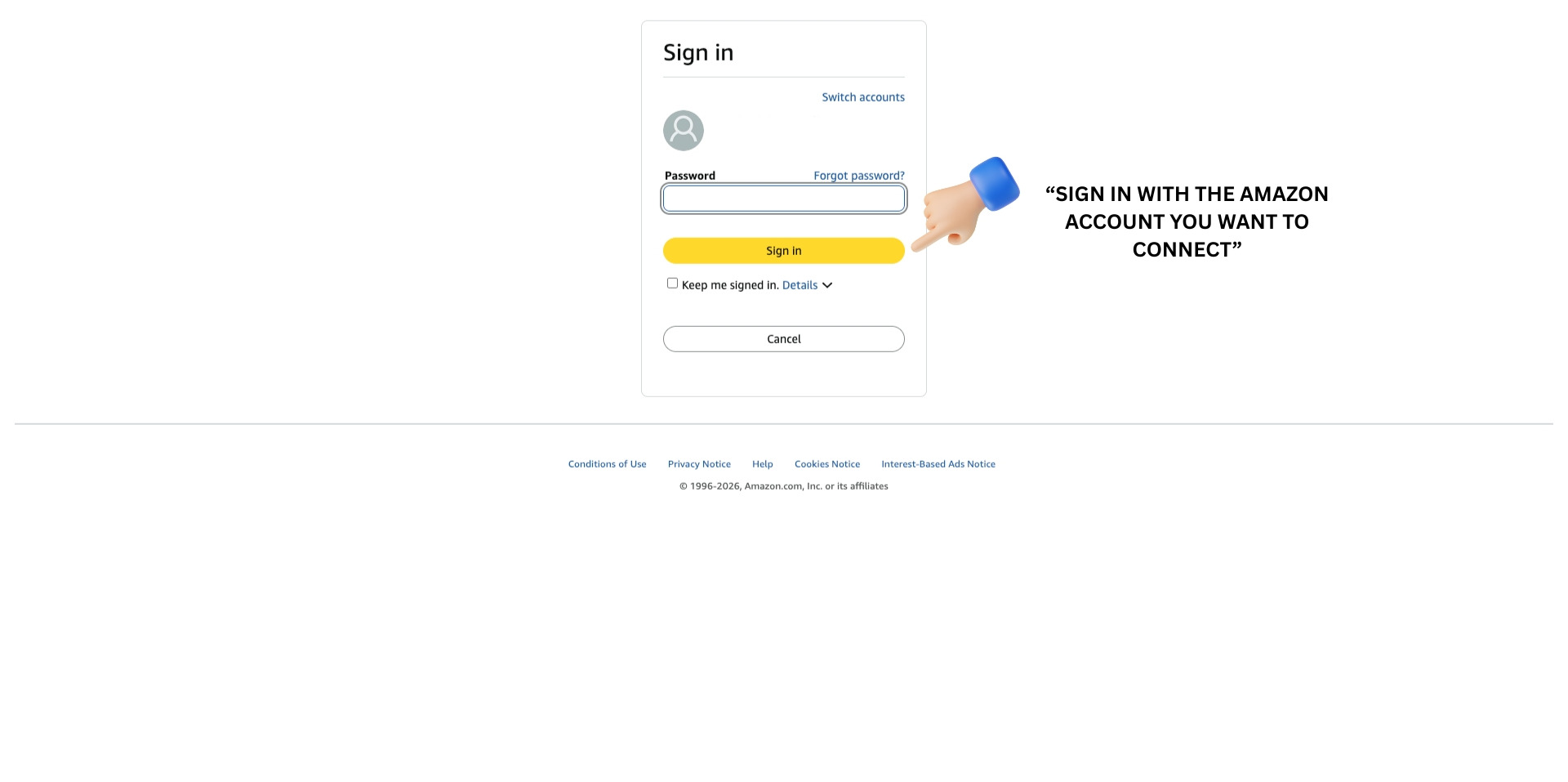
Sign in with your Amazon account
Amazon will show a Sign in page. Enter the password for the Amazon Seller account you want to connect. If a different account is shown, click Switch accounts first.
Select the South Africa marketplace
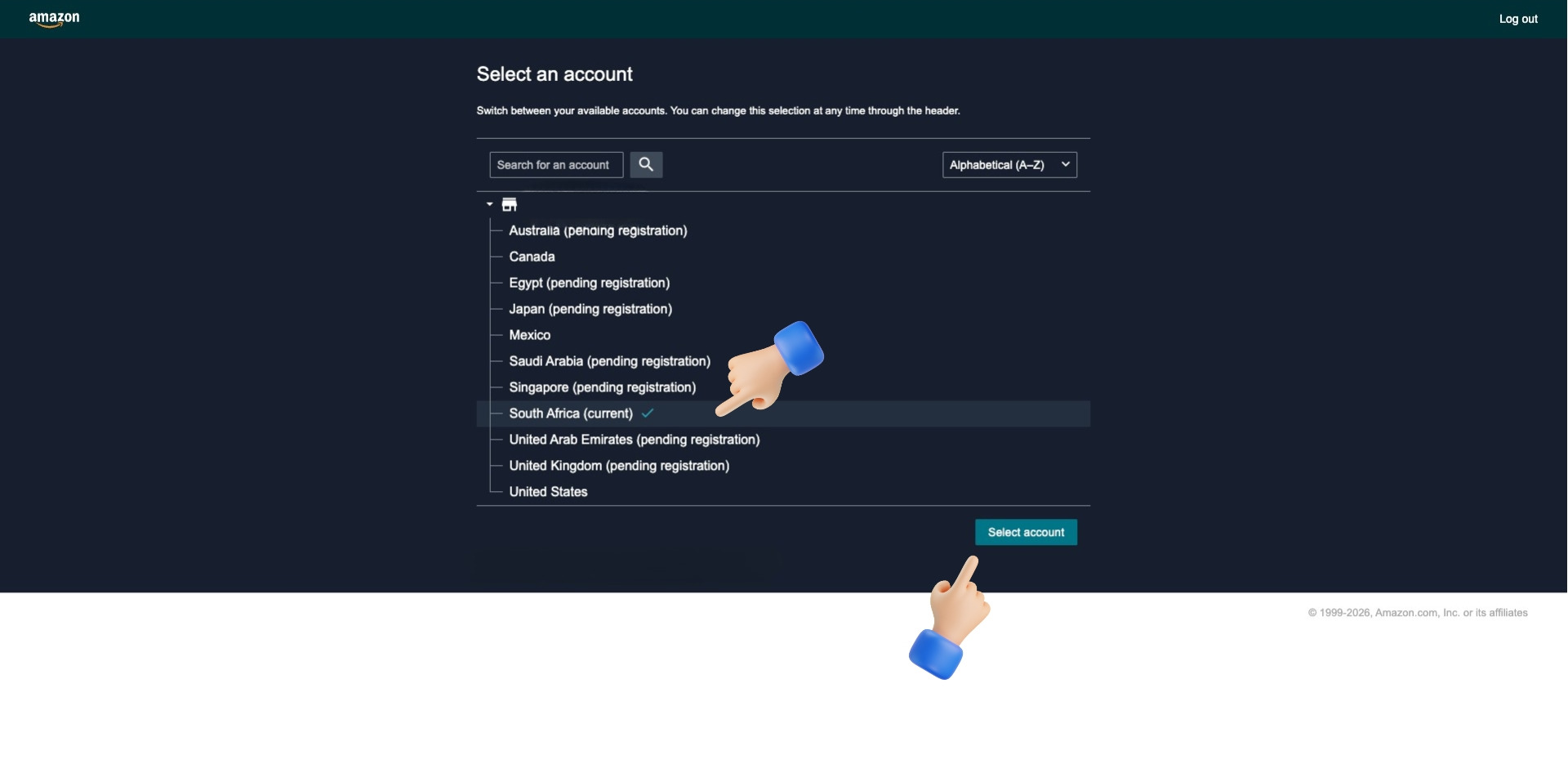
On the Select an account screen, choose South Africa — TSeller currently supports the South African marketplace only. Click Select account to continue.
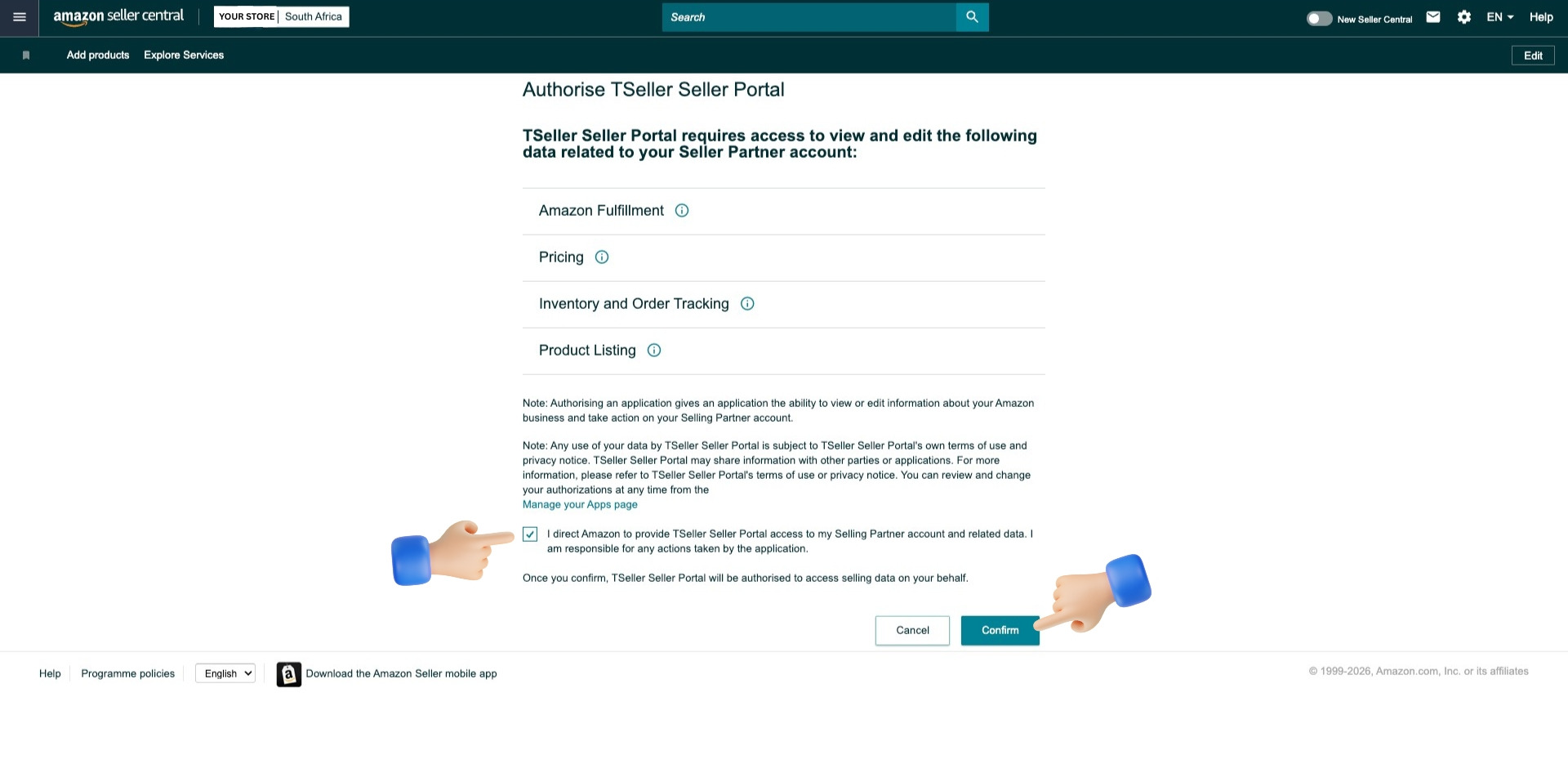
Authorise TSeller Seller Portal
Amazon will show the authorization screen listing the data TSeller needs: Amazon Fulfillment, Pricing, Inventory and Order Tracking, and Product Listing. Tick the authorization checkbox, then click Confirm.
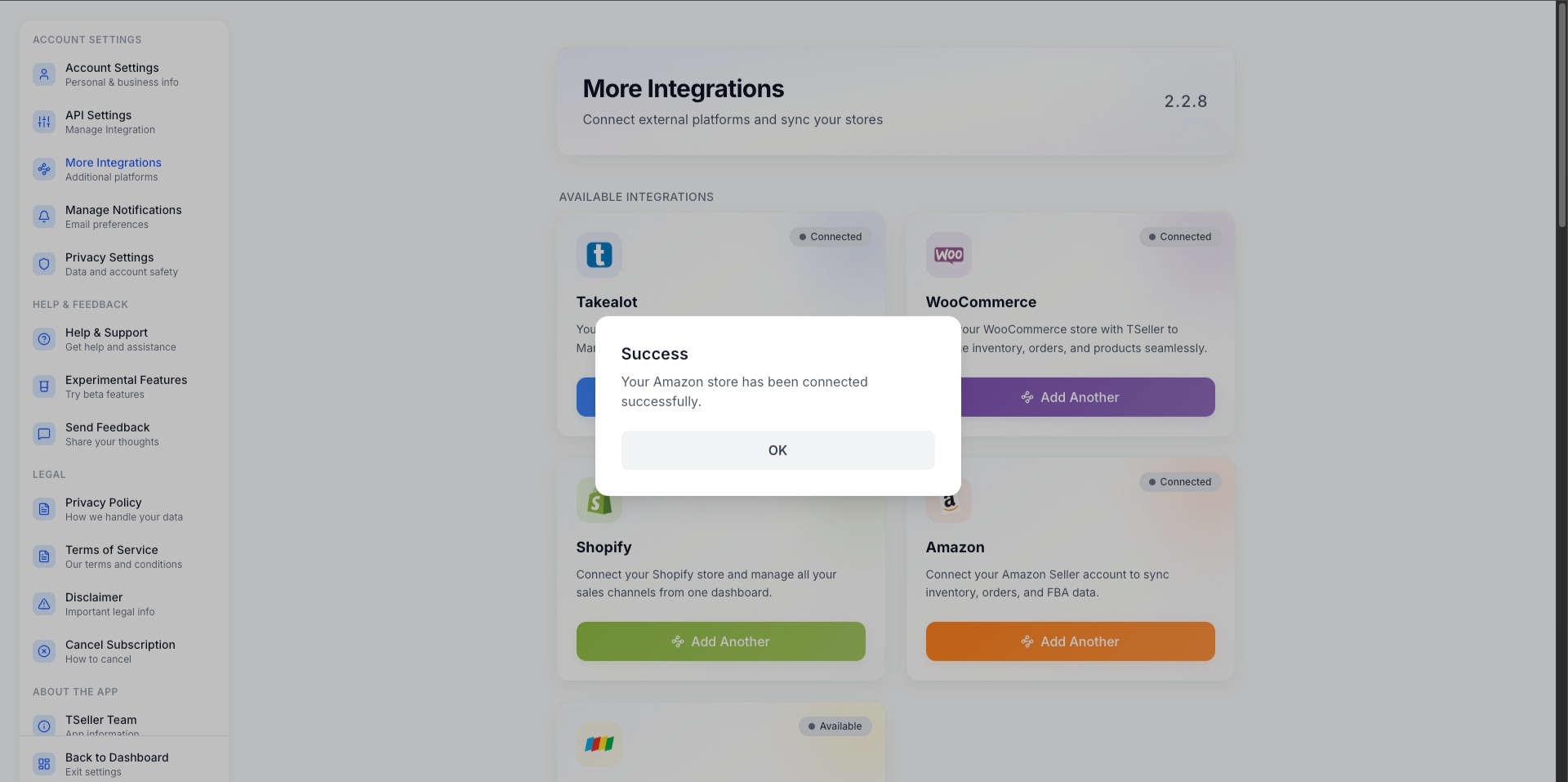
Connection successful
Amazon will redirect you back to TSeller. A Success message confirms the connection, and your Amazon store now appears in the Integrations list. Click OK to close.