Takealot WhatsApp Alerts
Oct 11, 2026 by Dihan Stoltz · 6 min read

TSeller now runs your store alerts on WhatsApp. Every morning you get yesterday's sales across Takealot, Amazon, Makro and Shopify in one message, and through the day TSeller tells you when a competitor drops below your Buy Box floor, when stock is running low at a Takealot distribution centre, when an ad wallet is about to run dry and when a payout lands. Each message has buttons for the detail behind it, and you can top up a Takealot ad wallet without leaving the chat. This guide covers all eight alerts, how to connect your number in a couple of minutes and what is coming next for TSeller on WhatsApp.
Morning Briefing: Yesterday's Sales Before You Start
The Morning Briefing arrives at the time you choose, from 06:00 to 10:00, and covers yesterday. It opens with a seven-day sales chart split by marketplace, then your revenue for the day against the day before. It adds up every Takealot store on your account with your Amazon, Makro, Shopify and Bob Shop sales, so one message tells you how the whole business did. Tap See breakdown for sales by marketplace and the Takealot products running low, then Restock these for a restock suggestion for each distribution centre.
Buy Box Alerts When a Competitor Goes Below Your Floor
When a competitor prices below the minimum you set in the TSeller repricer, the repricer holds at your floor instead of following them down, and TSeller tells you on WhatsApp. For one product the alert shows the competitor's price, your floor and what you would make or lose if you matched, worked out from the cost you saved in TSeller. When several products are affected, See products lists them together. TSeller checks every 15 minutes from 06:00 to 20:00 and alerts you about a product at most once a week, so a price war never floods your chat. Read how the Takealot Buy Box repricer sets your floor.
Restock and Labels for Takealot Distribution Centres
Restock and Labels tells you what to send to Takealot before you run out. Choose how often TSeller checks your stock (daily, on weekdays, weekly or fortnightly), how many days of cover counts as running low (7, 14, 21 or 30), how many products to list (up to 15), your stock target and which distribution centres you send to: Johannesburg, Cape Town and Durban. The message puts your best sellers first, with the stock left and how many units to send to each distribution centre, and See all sends a spreadsheet of every product that is running low. It arrives an hour after your Morning Briefing.
Weekly Ads Report: ROAS, Ad Spend & Sales From Ads
Every Monday, half an hour after your Morning Briefing, the Weekly Ads Report covers your Takealot Sponsored Ads for the week to Sunday: a ROAS line across the week, then ROAS, ad spend and sales from ads, each against the week before. See details names your best product and your wasted spend, the keywords and products that spent money and sold nothing, so you know what to pause first.
Ad Wallet Alerts Before Your Takealot Ads Run Out
Takealot Sponsored Ads only run while there is credit in the ad wallet. Every morning TSeller checks the wallet of each Takealot store connected through Agentic Integrations and works out how many days it will last at its current daily spend. When a wallet will last fewer days than you chose (3, 7, 14 or 30), you get an alert with a seven-day ROAS chart for each store, so you can see which wallets are worth topping up. See ad wallets lists each store's balance, days left, ROAS and daily spend. A store is reminded at most every three days.
Top Up a Takealot Ad Wallet From WhatsApp
From the ad wallet alert, tap Top up, choose the store, or all your low stores at once, and pick an amount from Takealot's ad credit packages, each shown with VAT included. TSeller then shows the store, the credit, the total with VAT and that it will be paid from that store's Takealot balance, and waits for you to tap Confirm. It checks the balance covers the purchase first, and once the credit is added it replies with the new wallet balance and how many days it will last. A top-up you do not confirm within 15 minutes is cancelled, so nothing is bought without your tap.
Payouts, Claims, Orders at Risk & Month in Review
The other alerts cover money and deadlines. Switch any of them on or off in Settings › App Notifications.
All Eight Alerts at a Glance
Every scheduled alert follows the Morning Briefing time you choose, and you can switch each one on or off.
Alert | When | Takealot | Other Platforms Amazon, Makro, Shopify |
|---|---|---|---|
| Morning Briefing | Daily | Yes | Yes |
| Buy Box Alerts | As it happens | Yes | — |
| Restock and Labels | Your schedule | Yes | — |
| Weekly Ads Report | Mondays | Yes | — |
| Ad Wallet Alerts | When low | Yes | — |
| Payouts and Claims | As they land | Yes | — |
| Orders at Risk | Daily | Yes | — |
| Month in Review | On the 1st | Yes | Yes |
How to Connect WhatsApp
Connecting takes a couple of minutes, and the video at the top of this post shows the alerts in action.
What's Next: Ask TSeller in WhatsApp
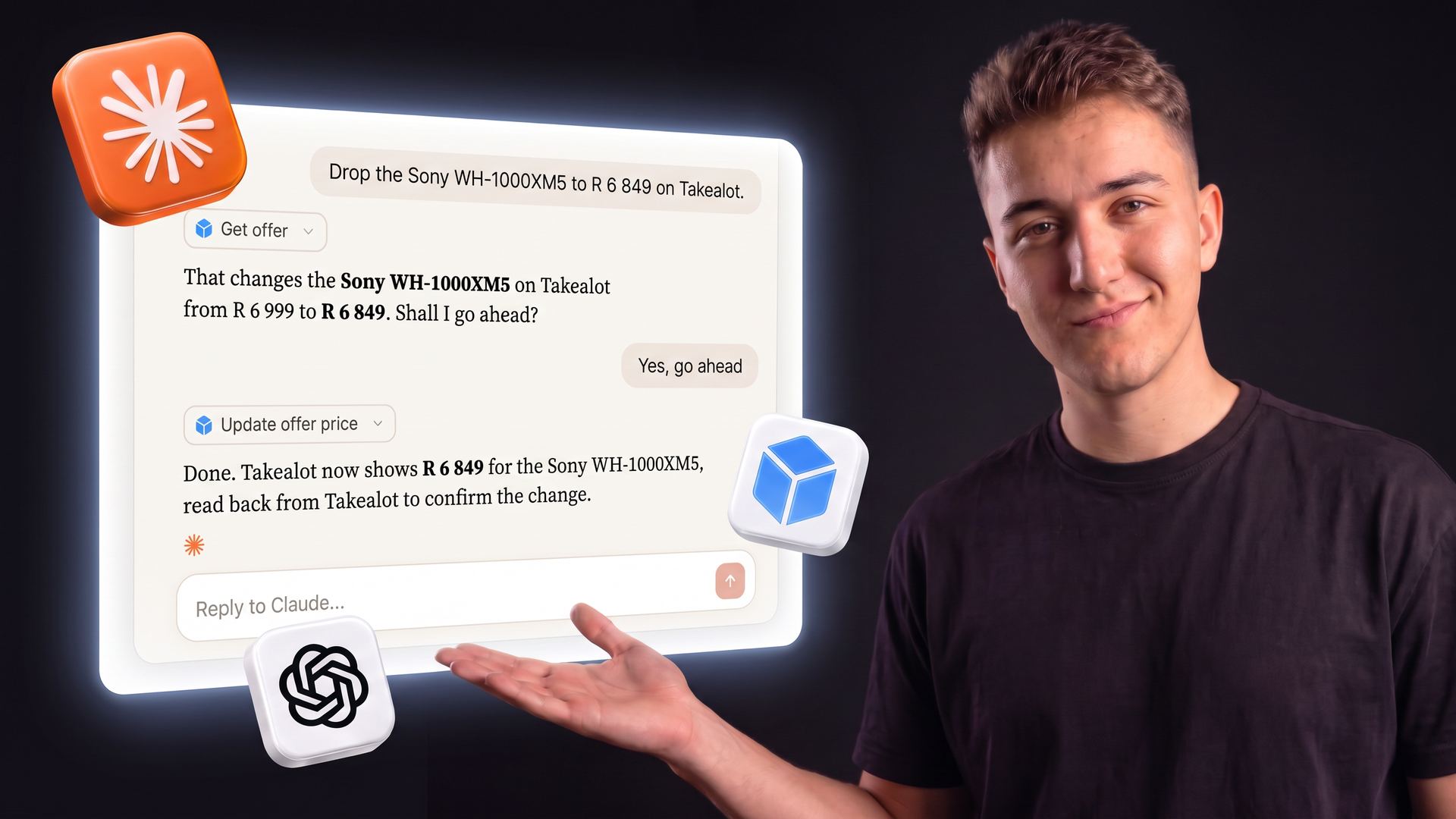
Today TSeller on WhatsApp sends alerts with buttons, and you can top up ad wallets from the chat. Your AI assistants already use it too: ask TSeller AI, or Claude or ChatGPT through the TSeller connector, to send a Takealot shipment's picking list, product labels, shipping note and box labels to your WhatsApp, and they arrive as documents in the chat. Coming next, you will be able to type a question to TSeller's AI agent in WhatsApp and get the answer in the same chat.
Pricing & Privacy
TSeller on WhatsApp is part of the Agentic plan, an add-on to your TSeller subscription, which starts at R199 per month with a 14-day free trial. Messages come from TSeller's WhatsApp Business number, and if you reply, a member of the TSeller team can help you in the same chat. Reply STOP at any time to stop messages to that number and START to resume. TSeller does not store the text of messages you send. Read the details in our Privacy Policy.
Conclusion
Your Takealot store does not wait for you to open a dashboard, and now your numbers do not either. The Morning Briefing tells you how yesterday went before the day starts, and the alerts that follow arrive only when something needs you: a competitor below your floor, stock running low, an ad wallet running dry or a payout landing. Pair it with the Claude and ChatGPT connector to ask follow-up questions about any alert. Start your free 14-day trial at https://tseller.co.za, or if you are already a TSeller user, open Settings › AI Data Connector and connect WhatsApp.