Takealot Sponsored Ads
Nov 9, 2026 by Dihan Stoltz · 9 min read
Takealot Sponsored Ads put your products at the top of Takealot search results and on other product pages, marked Sponsored, and you pay only when a shopper clicks. They make money when you advertise products that win the Buy Box, have stock and leave enough margin to pay for the clicks, and when you check every week which searches turn into sales. This guide shows how much Takealot ads cost, how to work out your break-even ROAS before you spend, how to set up a campaign in the Takealot Seller Portal step by step and how to choose keywords and bids. It then shows how TSeller's Auto Advertising and TSeller AI build your campaigns, block the searches that waste money and show your real ads profit after product costs.
What Are Takealot Sponsored Ads?
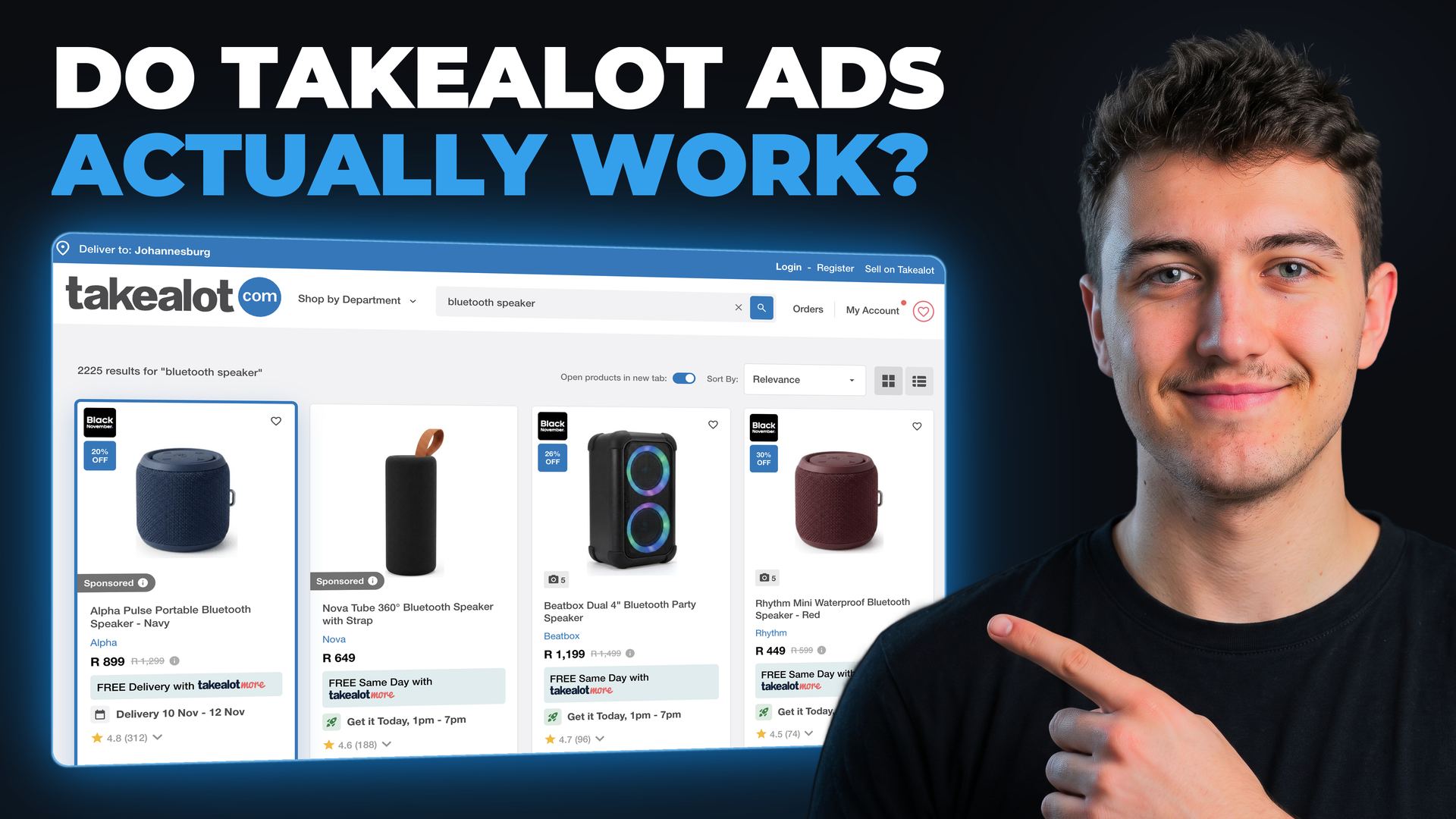
Takealot Sponsored Ads, also called Sponsored Products, are Takealot's own pay-per-click ads. Your product shows with a grey Sponsored label in search results, on other products' pages, after a shopper adds something to their cart and on Daily Deals, and you pay only when a shopper clicks.
How Much Do Takealot Sponsored Ads Cost?
There is no fee to start. You pay for clicks, close to the bid that wins them, and every campaign needs a daily budget of at least R50. Takealot sets a minimum bid for each keyword, from about R1.50 for a rare search to R5 or more for a busy one such as gaming monitor. Ad credit comes in packages, paid from your Takealot balance.
Ad Credit Package | Price Incl 15% VAT |
|---|---|
| R250 | R287.50 |
| R500 | R575 |
| R2,000 | R2,300 |
| R5,000 | R5,750 |
| R10,000 | R11,500 |
| Custom | Over R10,000 + VAT |
Package amounts exclude VAT. On a busy day a campaign can spend more than its daily budget, so keep a few days of spend in the wallet. TSeller's recommendations flag a wallet that will last fewer than 7 days.
Work Out Your Break-Even ROAS Before You Spend
ROAS, return on ad spend, is the sales an ad brings in divided by what its clicks cost. Your break-even ROAS is 1 divided by your profit margin before advertising, after Takealot's fees and your product cost. A product with a 25% margin breaks even at 4× ROAS: every R1 of ad spend has to bring in R4 of sales just to pay for itself. Above that the ad makes profit, and below it every sale from the ad loses money. Work out each product's margin with the Takealot profitability calculator before you advertise it.
Profit Margin Before Ads | Break-Even ROAS | Most Ad Spend per R1,000 of Sales |
|---|---|---|
| 10% | 10× | R100 |
| 15% | 6.7× | R150 |
| 20% | 5× | R200 |
| 25% | 4× | R250 |
| 30% | 3.3× | R300 |
| 40% | 2.5× | R400 |
Takealot's ROI includes VAT and other products bought after the click, so a campaign can look profitable in the Seller Portal while the product you advertised loses money. Compare the advertised product's own sales with its break-even ROAS.
How to Set Up Takealot Sponsored Ads in the Seller Portal
You can run Sponsored Ads entirely in the Takealot Seller Portal. This is the order that wastes the least money.
Automatic or Manual Keywords?
Automatic targeting lets Takealot choose the searches your ads show on, from your product titles and categories. Manual keywords let you choose searches yourself and bid more on the ones that sell. They are not either-or: when you add manual keywords, Takealot keeps showing your ads on other relevant searches automatically, as its own campaign screen says. That is why negative keywords matter on every campaign.
See Your Real Ads Profit With TSeller Auto Advertising
The Seller Portal shows your spend and Takealot's ad sales, but not whether the ads made you money. TSeller's Auto Advertising page reads your Takealot Sponsored Ads and puts them next to the product costs you saved in TSeller.
Build a Campaign in TSeller in Four Steps
Click New Campaign in Auto Advertising, or Create Campaign on a recommendation, and TSeller walks you through four steps: Products, Keywords, Budget and Launch.
Let TSeller AI Set Up the Campaign
The quickest way is the one in the video: ask TSeller AI. Type something like "Set up a sponsored product campaign for my products in stock, with manual keywords and bids", and it does the rest.
The same works in WhatsApp, by replying to any TSeller message, and in Claude or ChatGPT through the TSeller connector.
Cut Wasted Spend: Search Terms & Negative Keywords
Most wasted ad spend on Takealot goes on searches that click but never buy: a cheaper version, an accessory, a free giveaway. Open Search Terms in Auto Advertising after a few days of spend and look at the searches that spent the most: any with clicks and no sales are costing you money. Click Block beside one, choose an exact search or a phrase, and it stops showing your ad in that campaign. Searches that sell are worth adding as Exact keywords with their own bid. TSeller AI can do the review for you: ask which search terms are costing you money, and it lists them with their spend and blocks the ones you pick.
Recommendations: Move Budget to What Sells
Recommendations in Auto Advertising check every campaign against your margins and suggest one change at a time, with the reason beside it. Nothing changes until you click.
Ask TSeller AI to Review Your Ads
After a campaign has spent for a few days, ask TSeller AI to review it: which campaigns are below break-even, which keywords and searches sell, and where the budget should go. It answers from the same figures as the Auto Advertising page and proposes changes as cards, such as moving budget from a losing campaign to one that runs out of budget every day, adding products that are back in stock or removing ones that sold out. Apply the ones you want. Then make it a habit: ask TSeller AI to send you an ad report every morning, every Monday or on the 1st of the month. Scheduled reports arrive as a new TSeller AI conversation at the hour you choose, and you can keep up to three.
Weekly Ads Report & Wallet Alerts on WhatsApp
With WhatsApp connected, TSeller sends a Weekly Ads Report every Monday with ROAS, ad spend and sales from ads against the week before, and your best product and wasted spend one tap away. Ad Wallet Alerts warn you before a wallet runs out. Reply to either with a question or a change, such as "Block the wasted searches", and TSeller AI answers in the same chat with Apply and Cancel buttons.
Seller Portal vs TSeller Auto Advertising
TSeller makes its changes through Takealot, so a campaign you edit in TSeller looks the same in the Seller Portal, and the other way round. What TSeller adds is everything that needs your costs or works for you.
Seller Portal | TSeller | |
|---|---|---|
| Campaigns, keywords & bids | Yes | Yes |
| Negative keywords | Yes | Yes |
| Ad wallet top-ups | Yes | Yes |
| Ads profit after product costs | — | Yes |
| Break-even ROAS per campaign | — | Yes |
| Recommendations from your margins | — | Yes |
| Campaigns built by AI | — | Yes |
| Weekly ads report on WhatsApp | — | Yes |
Common Takealot Ads Mistakes
Most campaigns that lose money make one of these mistakes.
Pricing & Getting Started
Auto Advertising and TSeller AI's ads tools are part of the Agentic plan, an add-on to your TSeller subscription, which starts at R199 per month with a 14-day free trial. Connect your Takealot agent in Settings › AI Data Connector, and your campaigns, wallet and results load in Auto Advertising. TSeller only changes a campaign when you click Apply or confirm the change.
Conclusion
Takealot Sponsored Ads are not a scam, but one automatic campaign on every product usually wastes money. Advertise products that win the Buy Box and carry the margin, know your break-even ROAS before you spend, block searches that click without buying and move budget to the campaigns that sell. TSeller's Auto Advertising and TSeller AI do the building, blocking and checking for you, with your real ads profit beside every campaign, and TSeller's WhatsApp alerts send the weekly results to your phone. Start your free 14-day trial at https://tseller.co.za, or if you already use TSeller, open Auto Advertising and click New Campaign.