Video Tutorial

What You'll Need

Seller Portal loginThe account that owns your store
API keyAPI Integrations › Seller API

Where To Get Your API Key

ShownOnce, when you generate it

How Your API Key Is Stored

Why we need your API key

Takealot's Seller API uses an API key instead of your password. TSeller uses it to read your offers and sales and to send the price, stock and lead time changes you make. Your Seller Portal password is never shared with us.

StorageSaved to your TSeller account in Google Cloud, which encrypts stored data at rest.
AccessOnly your account, and the team members you add, can use it.
UseUsed only to call Takealot’s Seller API for your store.
Generated a new key?A new key cancels the old one. Paste the new key into TSeller under Settings › Takealot Settings.

What TSeller Will Sync

Offers
Price, stock, status, lead time
Sales
Orders and sales history
Edits
Price, stock and lead time
Webhook
Optional real-time updates

Step-by-Step

1

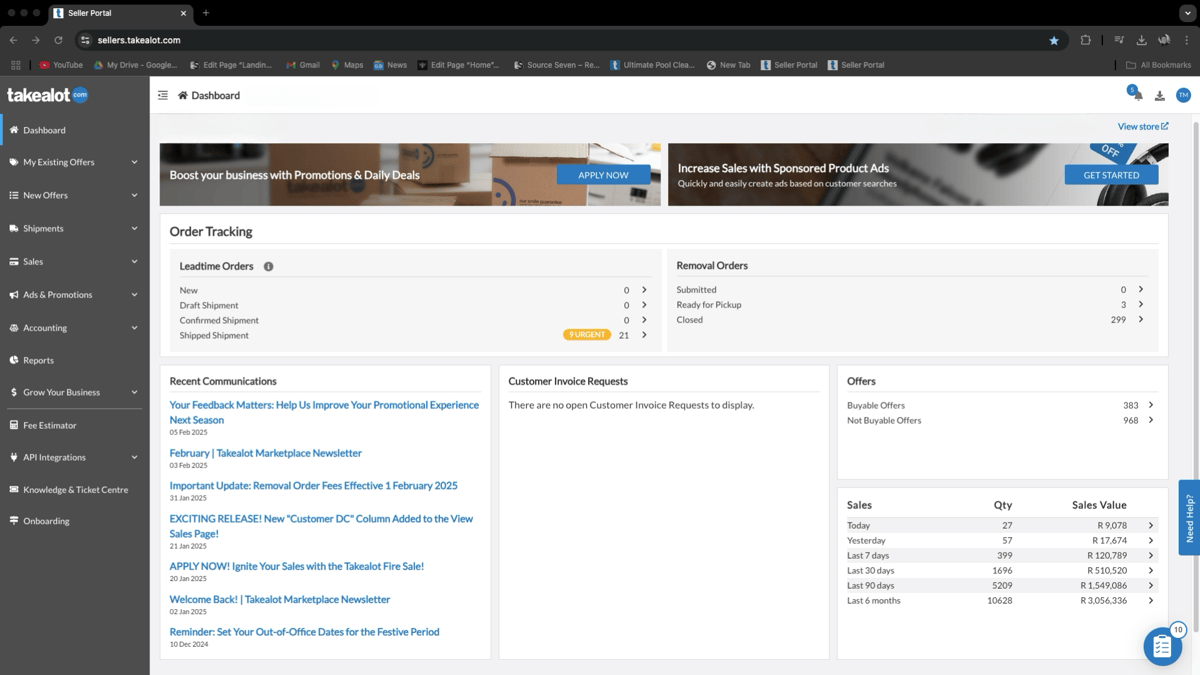
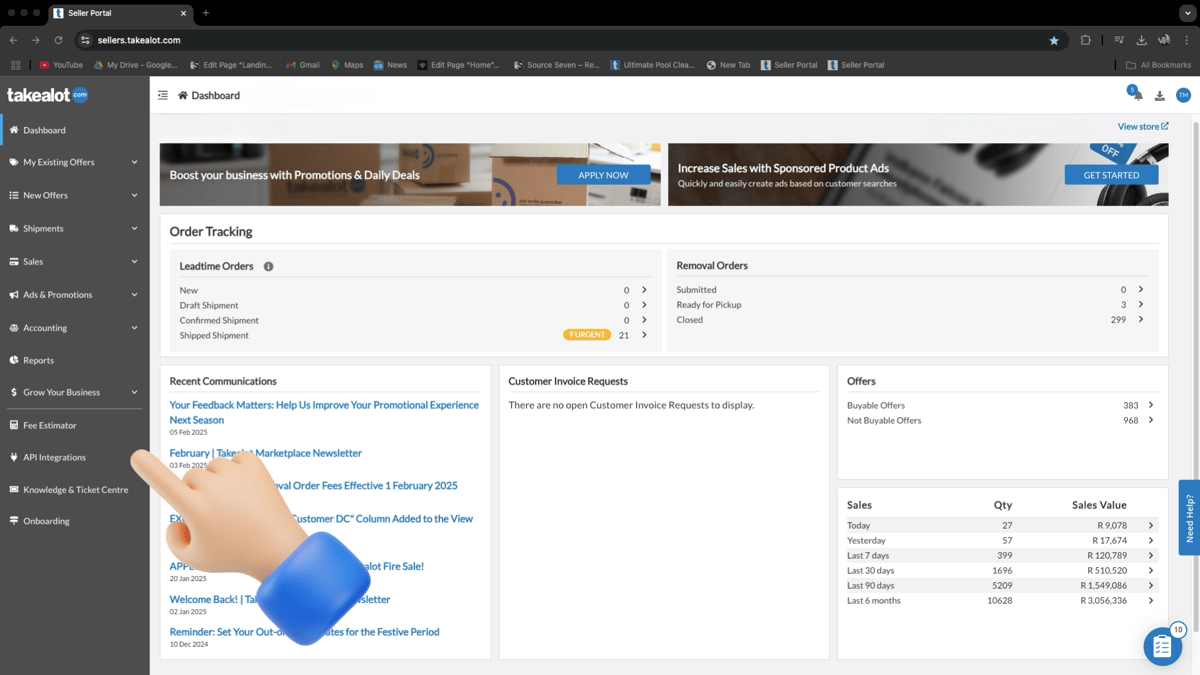
Open the Takealot Seller Portal

Sign in to the Takealot Seller Portal with the account that owns your store.
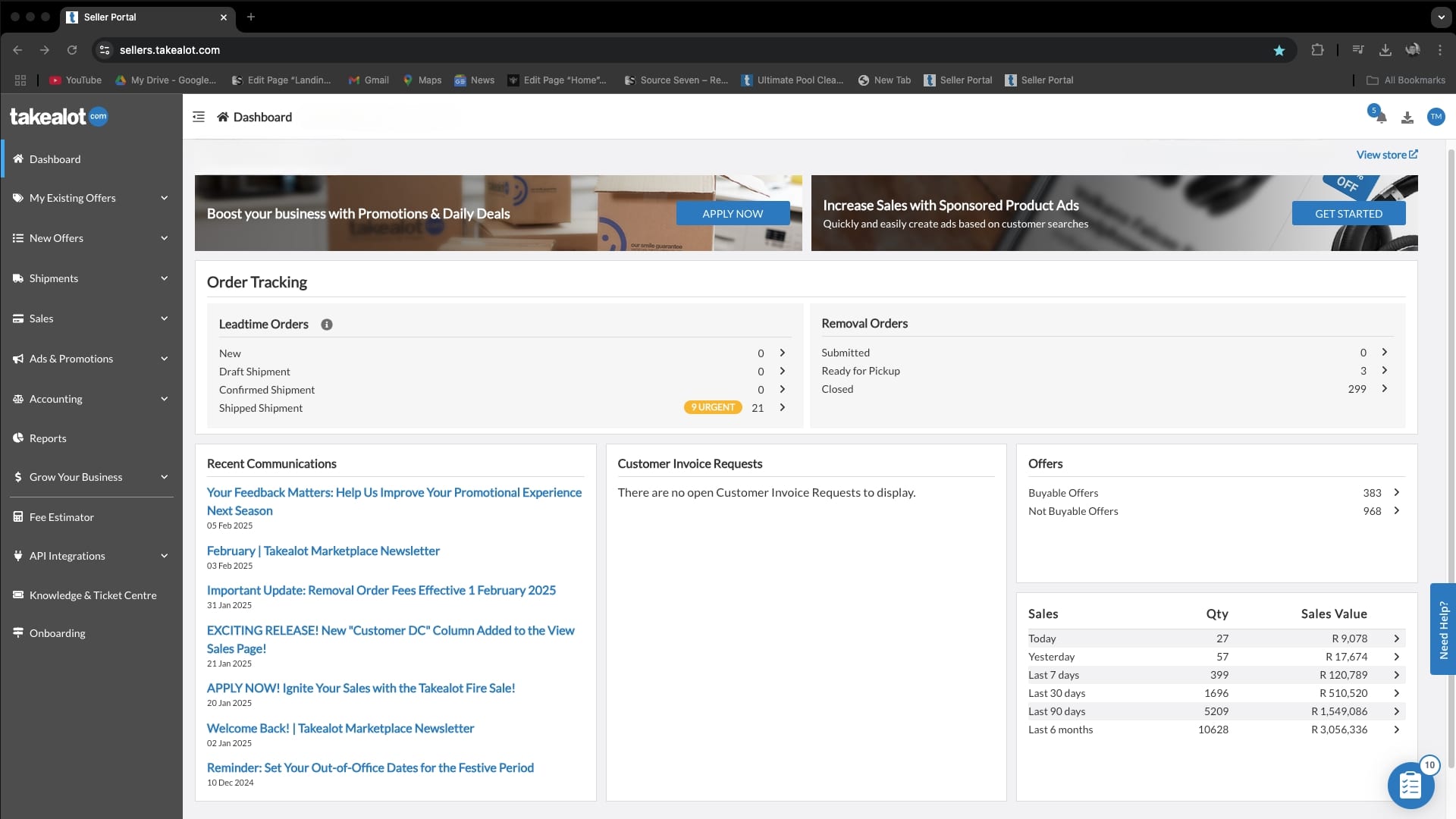
Takealot Seller Portal dashboard
2

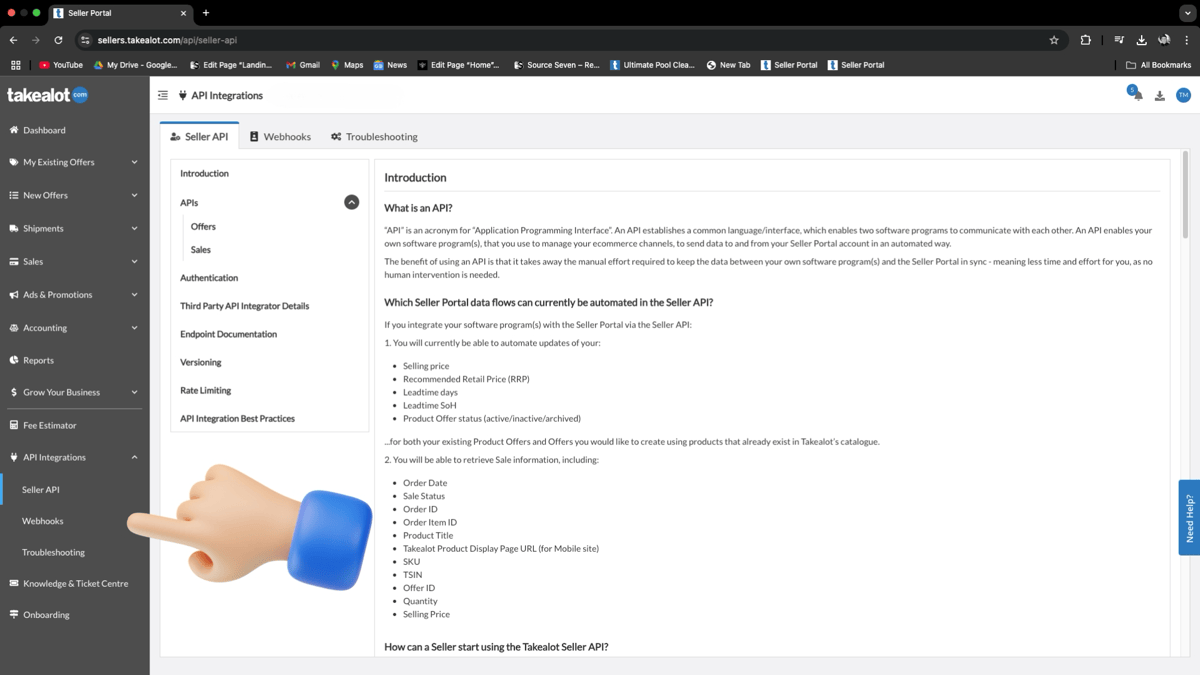
Go to API Integrations

In the left-hand menu, click API Integrations.
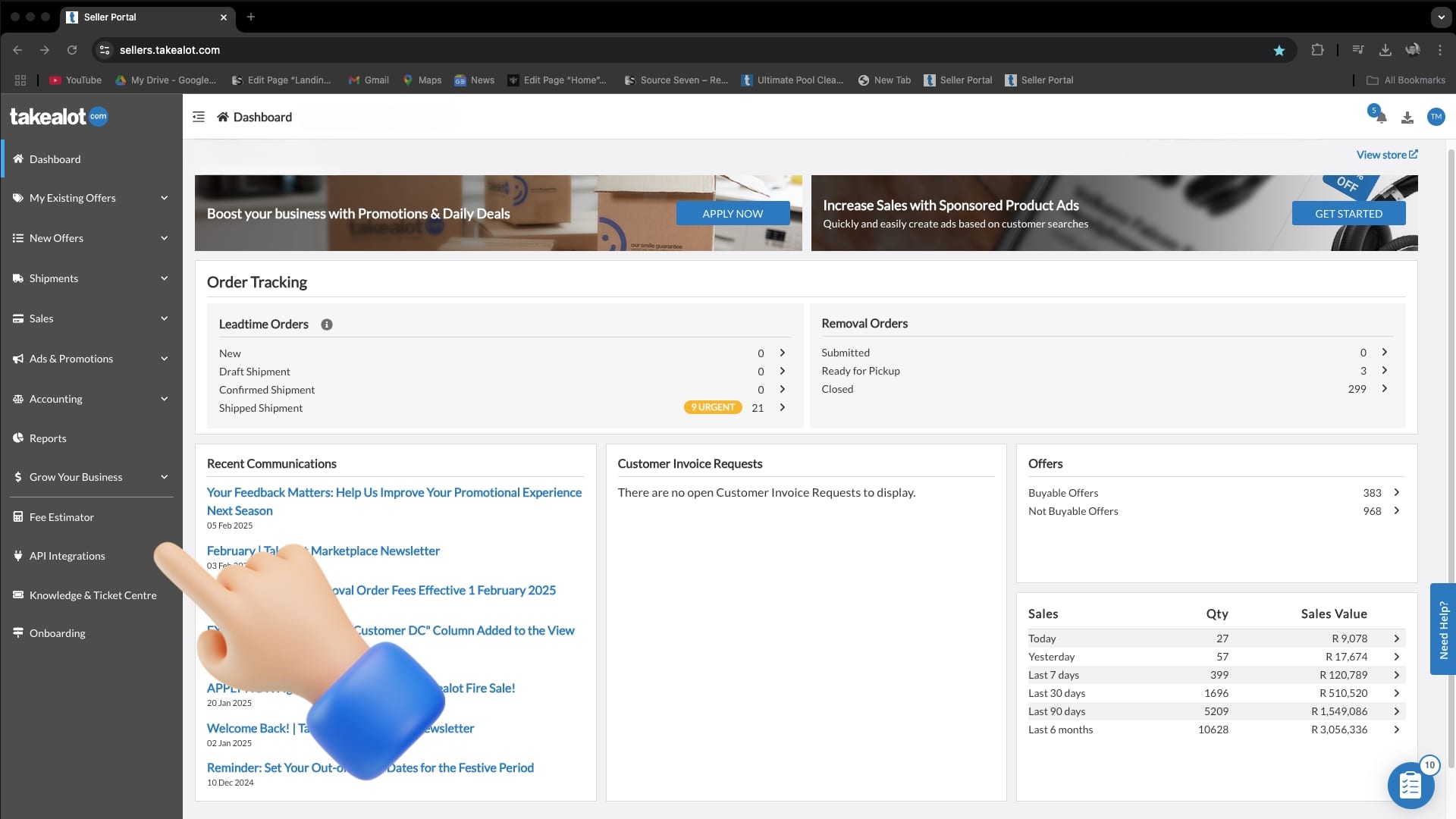
Takealot Seller Portal side menu — click API Integrations
3

Open Seller API

Under API Integrations, click Seller API, or open the Seller API page directly.

Takealot API Integrations — click Seller API
4

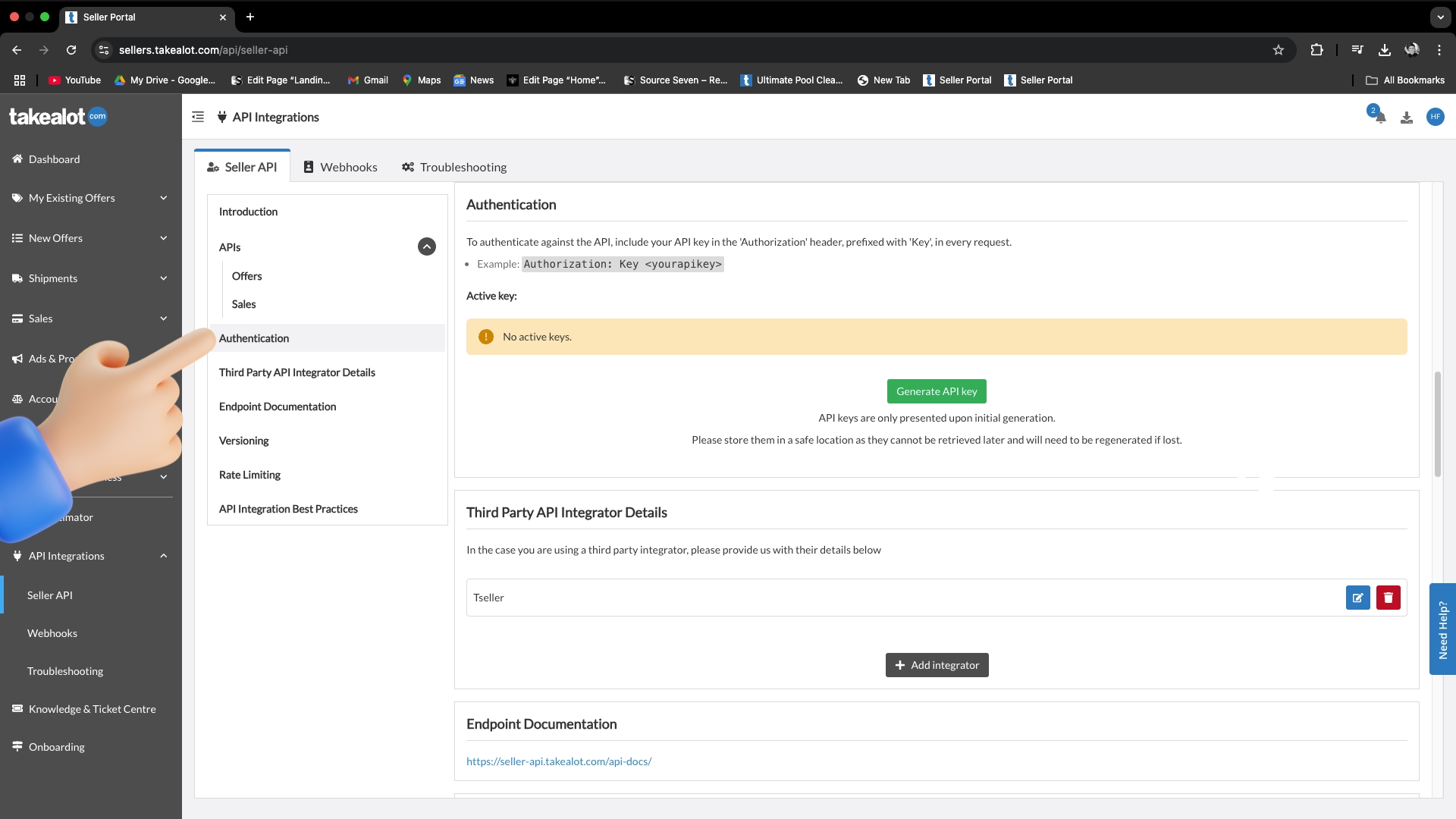
Open Authentication

In the Seller API menu, click Authentication.

Takealot Seller API menu — click Authentication
5

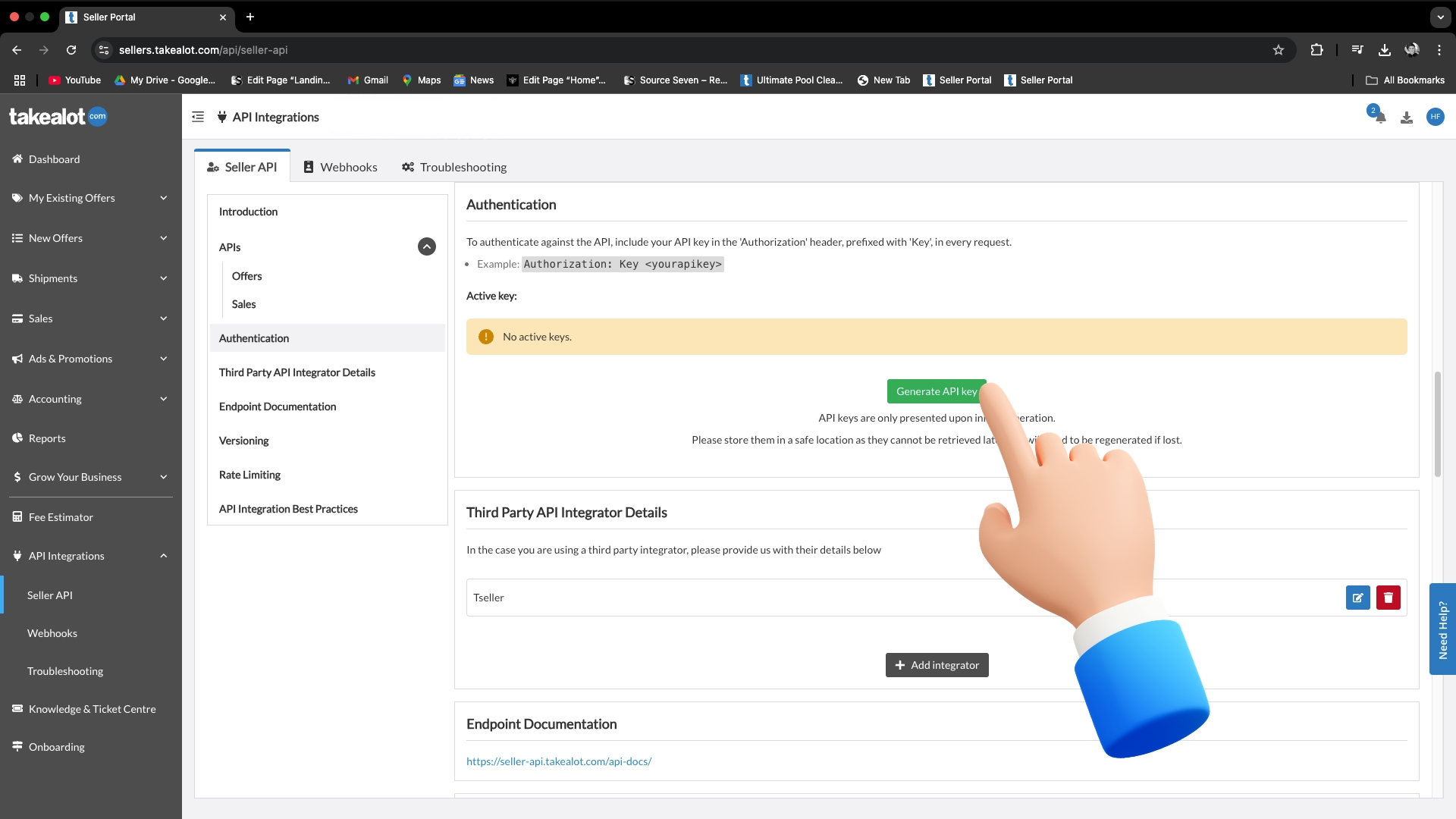
Generate your API key

Click the green Generate API key button. A new key cancels any key you generated before.

Takealot Authentication — click Generate API key
6

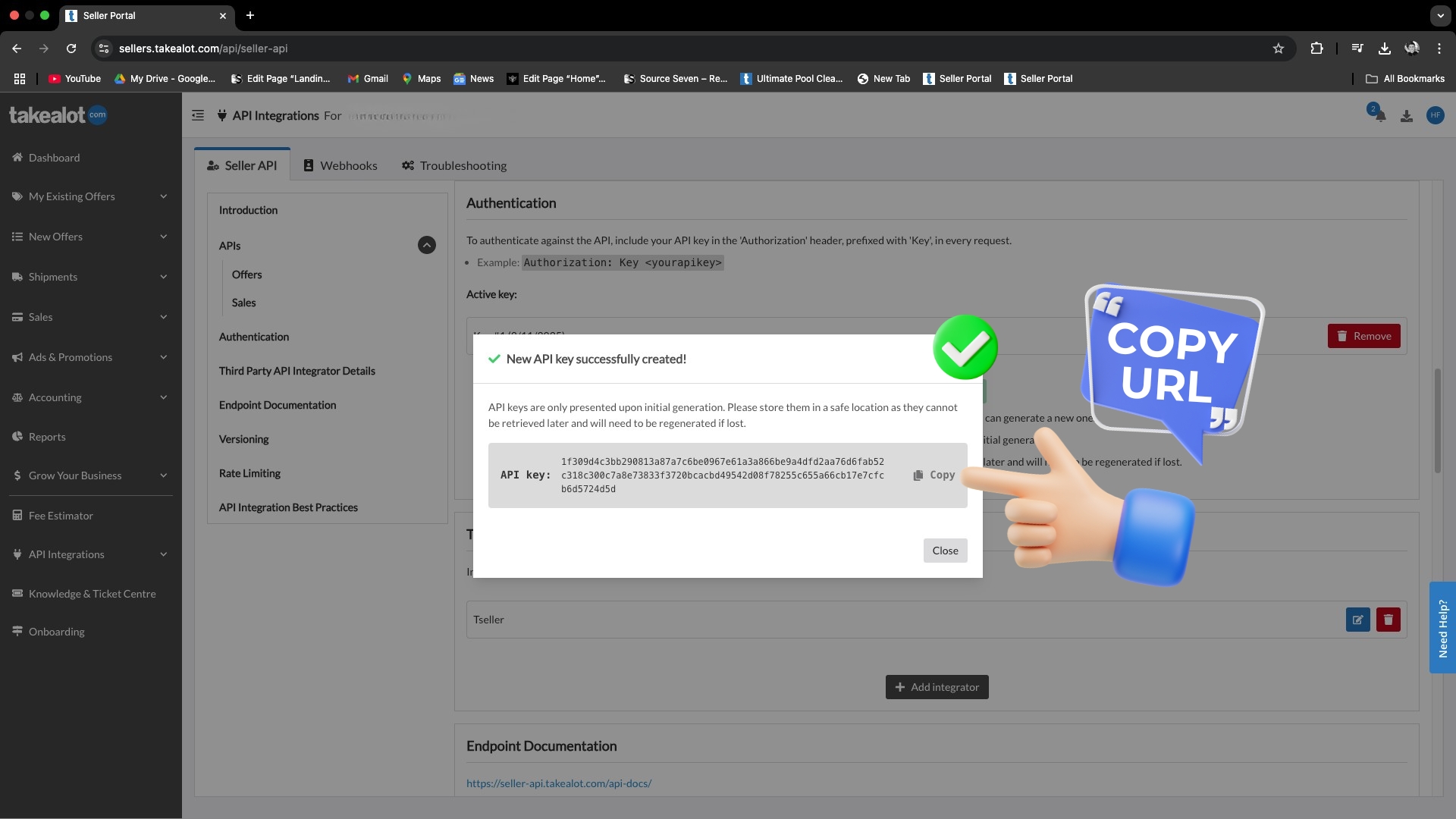
Copy the full key

In the popup, click Copy to copy the whole key. Takealot only shows it once, so paste it into TSeller straight away.

Takealot popup — New API key successfully created, with Copy
7

Paste the key into TSeller

Signing up? Paste the key into the API key field and click Continue. Already have an account? Paste it under Settings › Takealot Settings and save. TSeller checks the key with Takealot and loads your store.

Real-Time Updates (Webhook)

A webhook makes Takealot tell TSeller about new orders, sale status changes and offer updates the moment they happen. Set it up once, after your API key.

1

Open the Takealot Seller Portal

Sign in to the Takealot Seller Portal.

Takealot Seller Portal dashboard
2

Go to API Integrations

In the left-hand menu, click API Integrations.
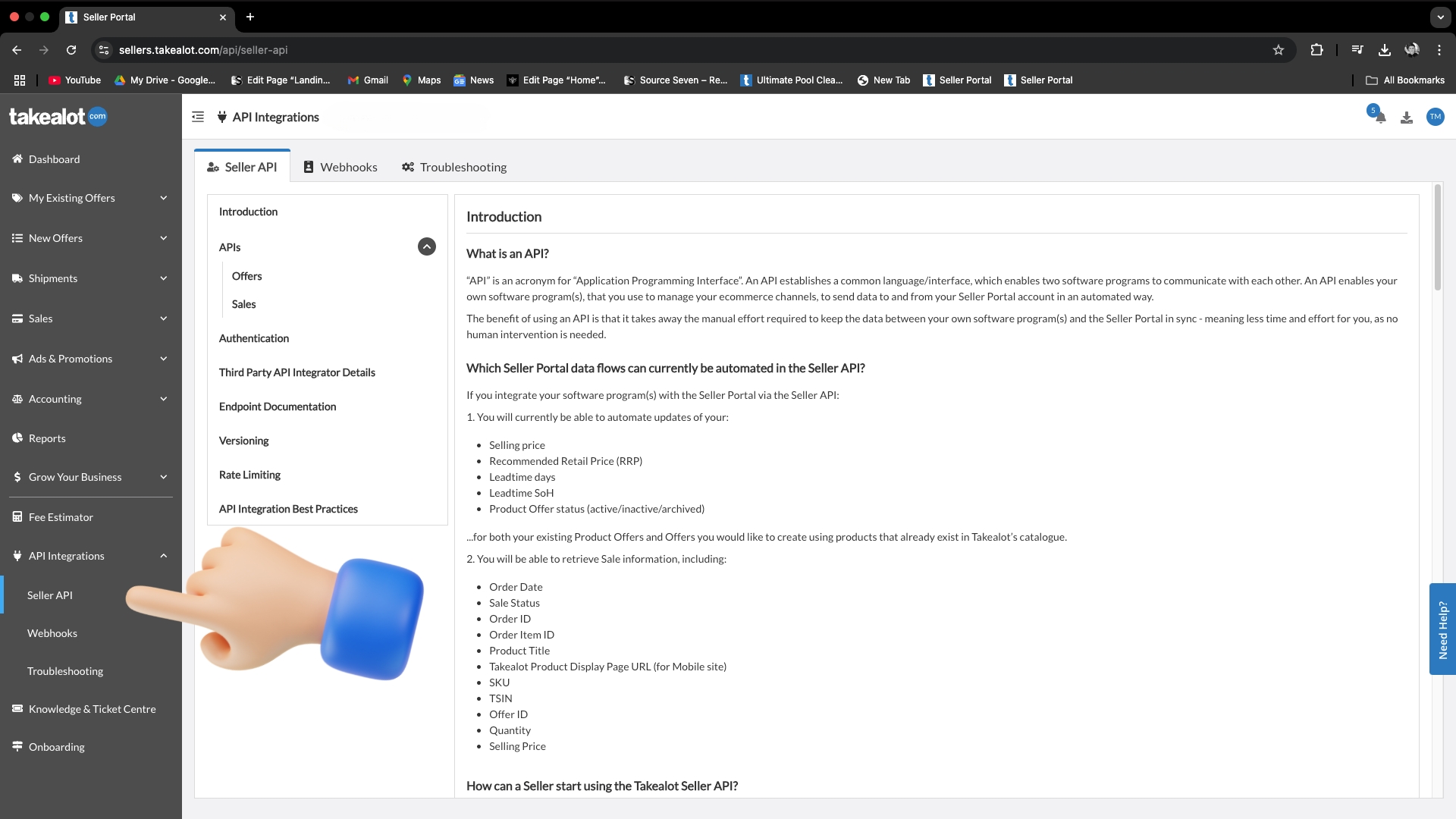
Takealot Seller Portal side menu — click API Integrations
3

Open Webhooks

Under API Integrations, click Webhooks, or open the Webhooks page directly.

Takealot API Integrations — click Webhooks
4

Open Configuring Webhooks

In the Webhooks menu, click Configuring Webhooks.
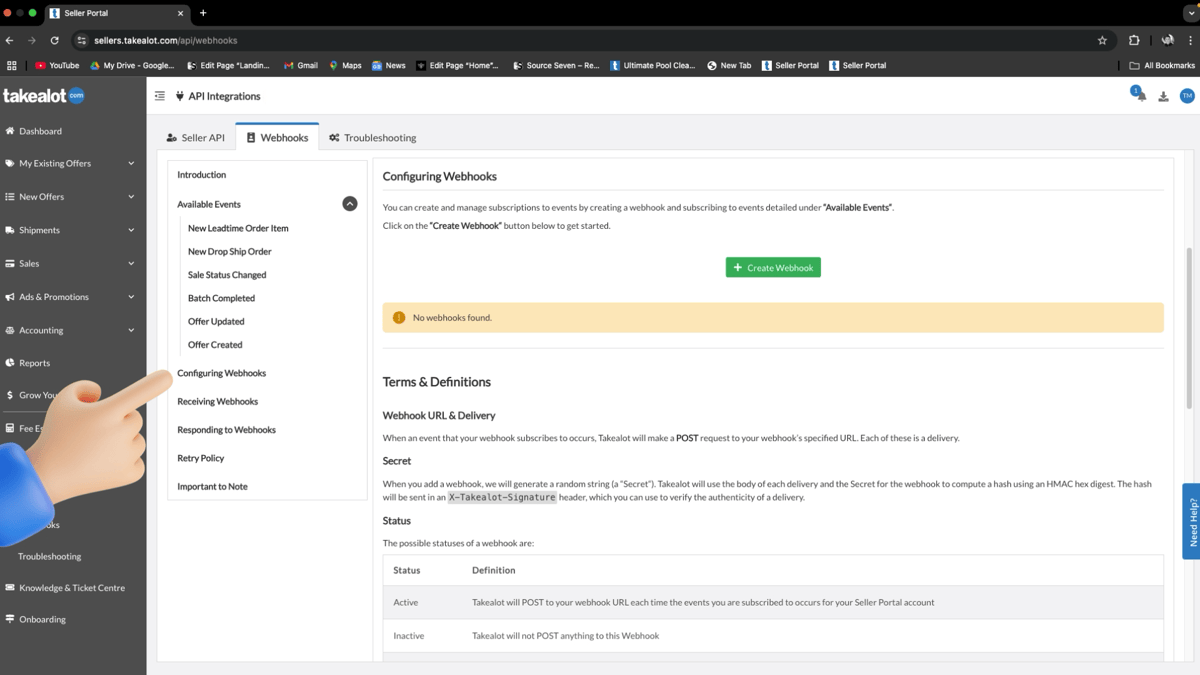
Takealot Webhooks menu — click Configuring Webhooks
5

Create a webhook

Click the green Create Webhook button.
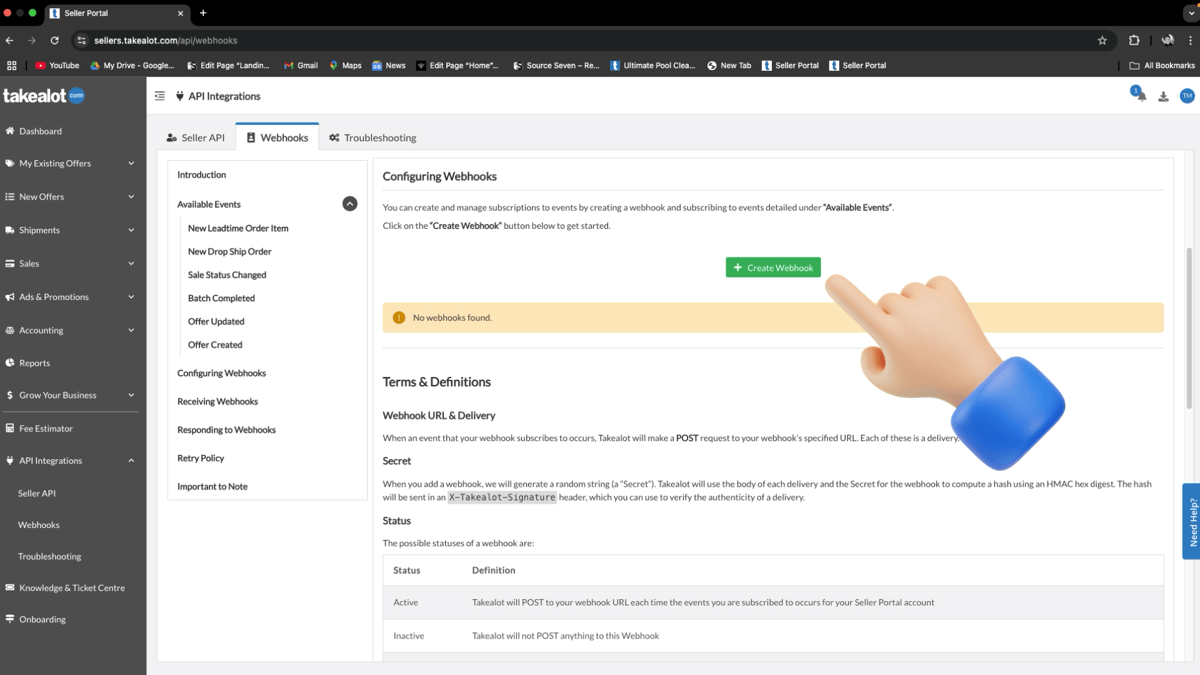
Takealot Configuring Webhooks — click Create Webhook
6

Paste your TSeller webhook URL

Paste your TSeller webhook URL into the URL field. You'll find it on the webhook step when you sign up, or under Settings › Takealot Settings.
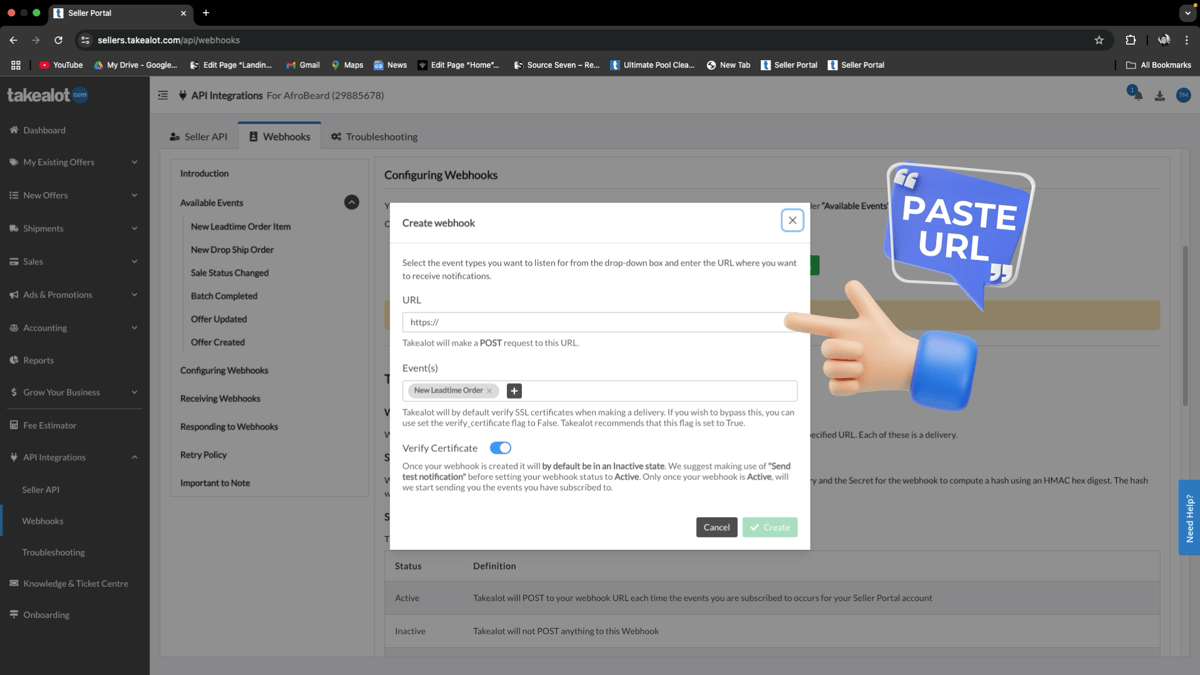
Takealot Create webhook dialog — paste the URL
7

Add every event

Click + next to Event(s) and add every event in the list.
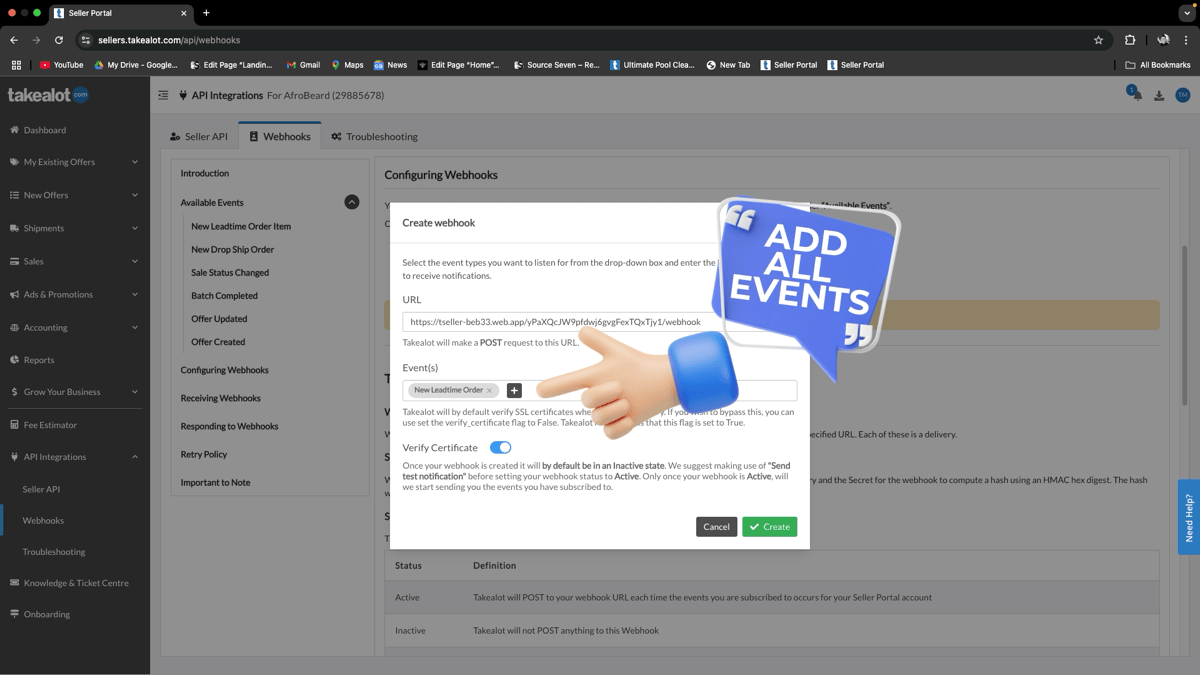
Takealot Create webhook dialog — add all events
8

Create the webhook

With every event added, click Create.
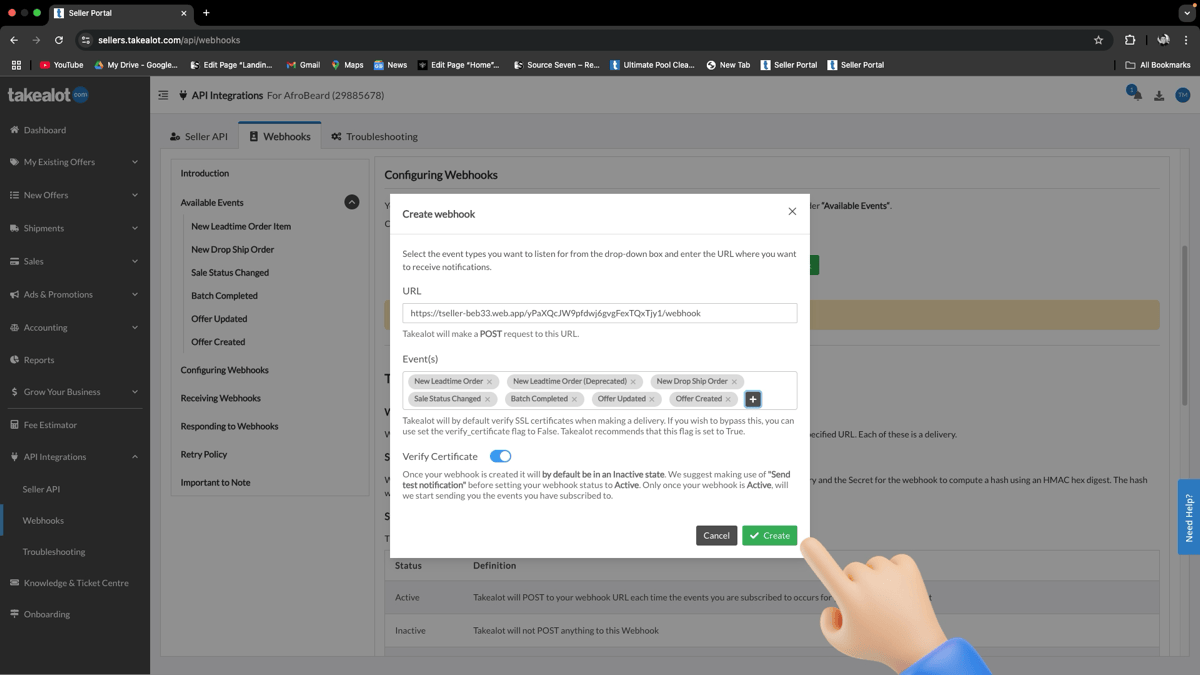
Takealot Create webhook dialog — all events added, click Create
9

Switch the webhook to Active

New webhooks start inactive. Switch Active on so Takealot starts sending events to TSeller.
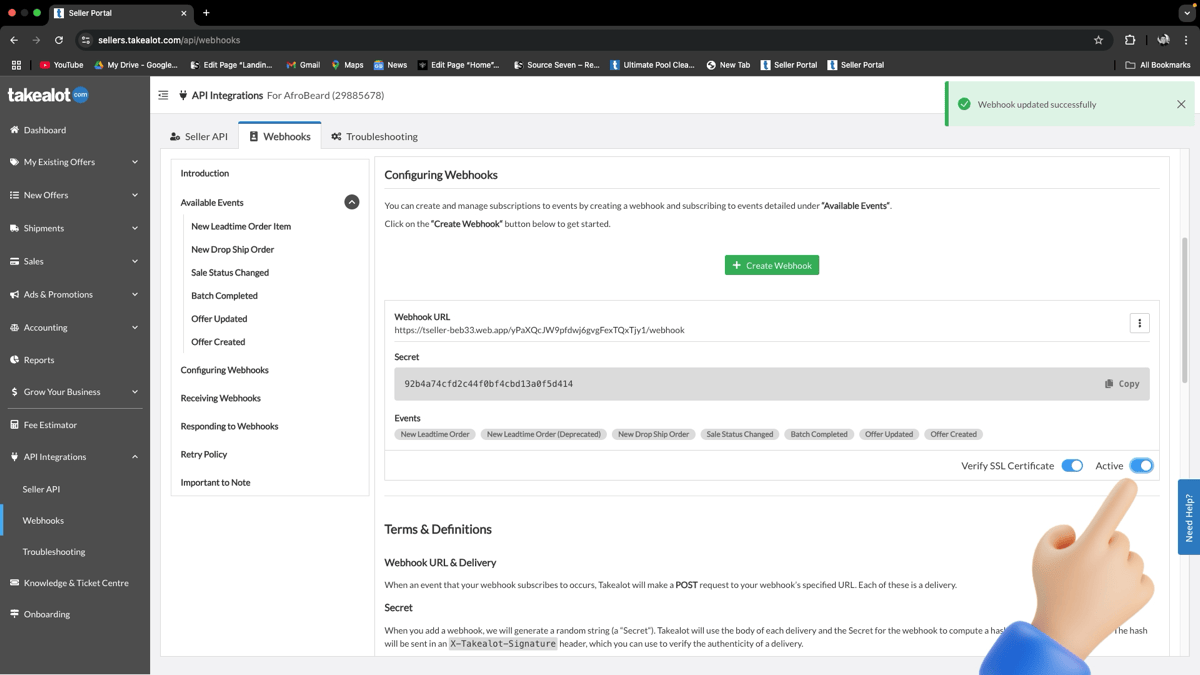
Takealot webhook created — switch Active on

Test Your Webhook

1

Send a test notification

Click the ⋮ menu on your webhook and choose Send test notification.
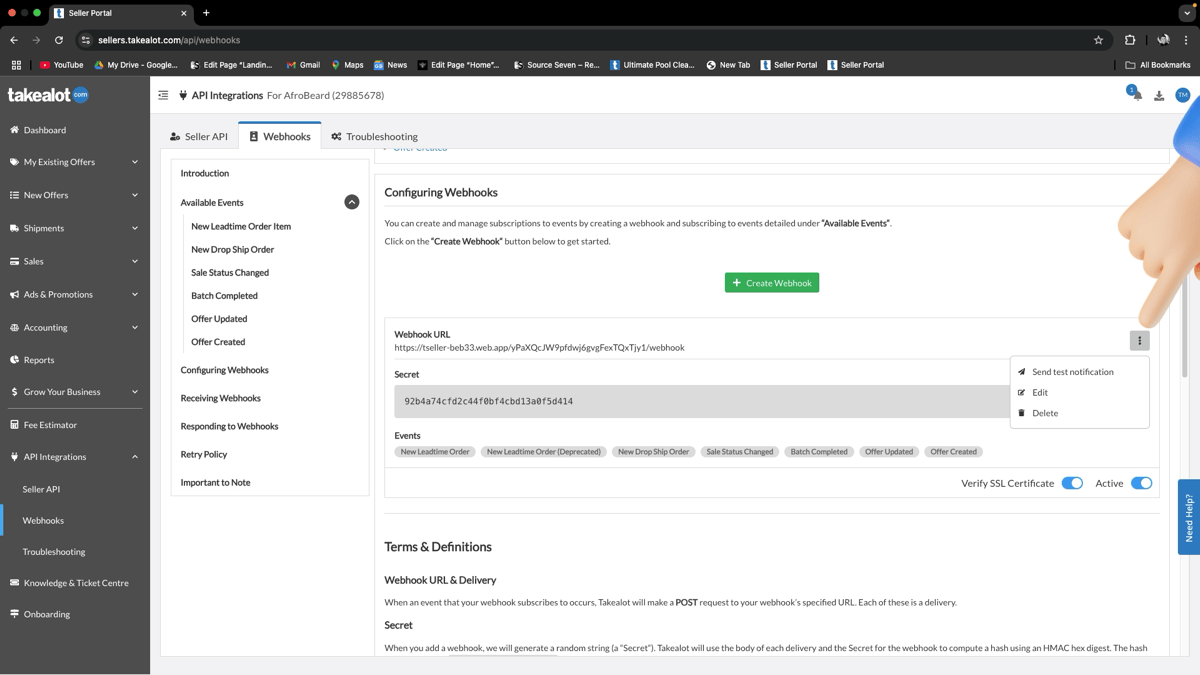
Takealot webhook menu — Send test notification
2

Pick an event to send

Choose any event from the list to send a test to TSeller.
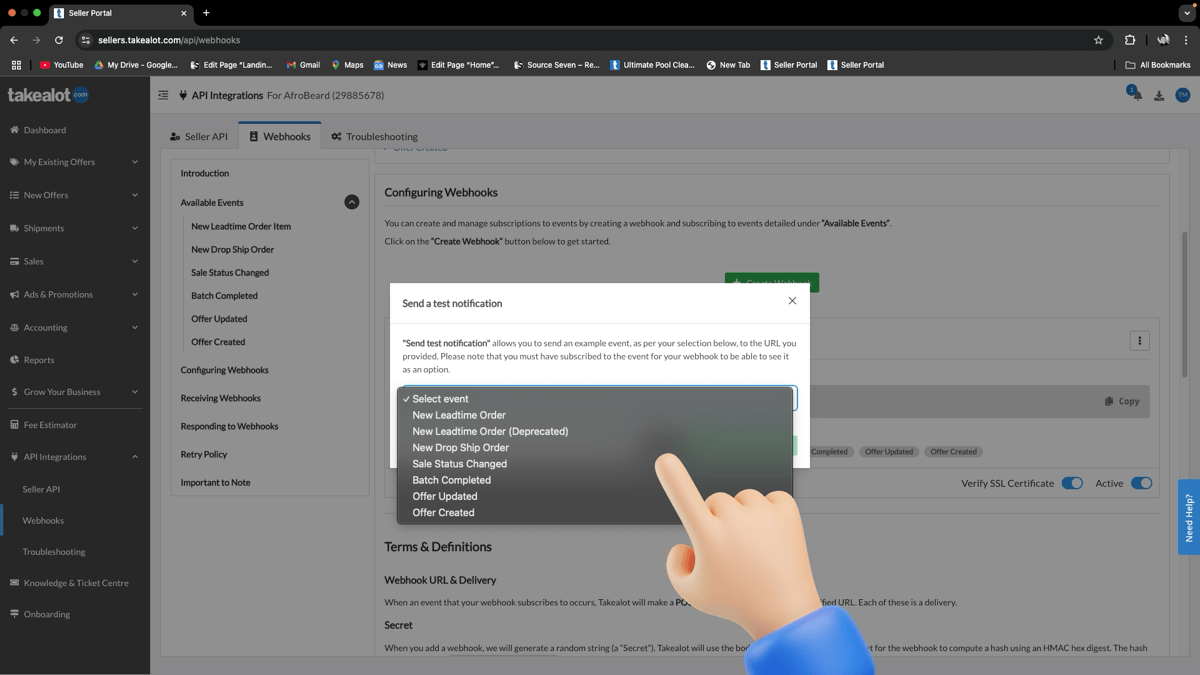
Takealot Send a test notification — choose an event

Troubleshoot
Guide

API key rejected

Copy the key with the popup's Copy button and paste it again. A new key cancels the old one.

Lost your API key?

Takealot only shows a key once. Generate a new one and paste it into TSeller.

Seller account not active

Takealot won't accept a key while your seller account is switched off. Contact us and we'll help.

Takealot didn't answer

A slow connection or a busy Takealot can stop the check. Wait a few minutes and try again.

Webhook not sending updates

Check the webhook is Active, has every event added, and uses your TSeller webhook URL.

Need help?

Get in touch with support