Video Tutorial
Required Credentials
Description
TSeller
Permissions
Read/Write
What You'll Need
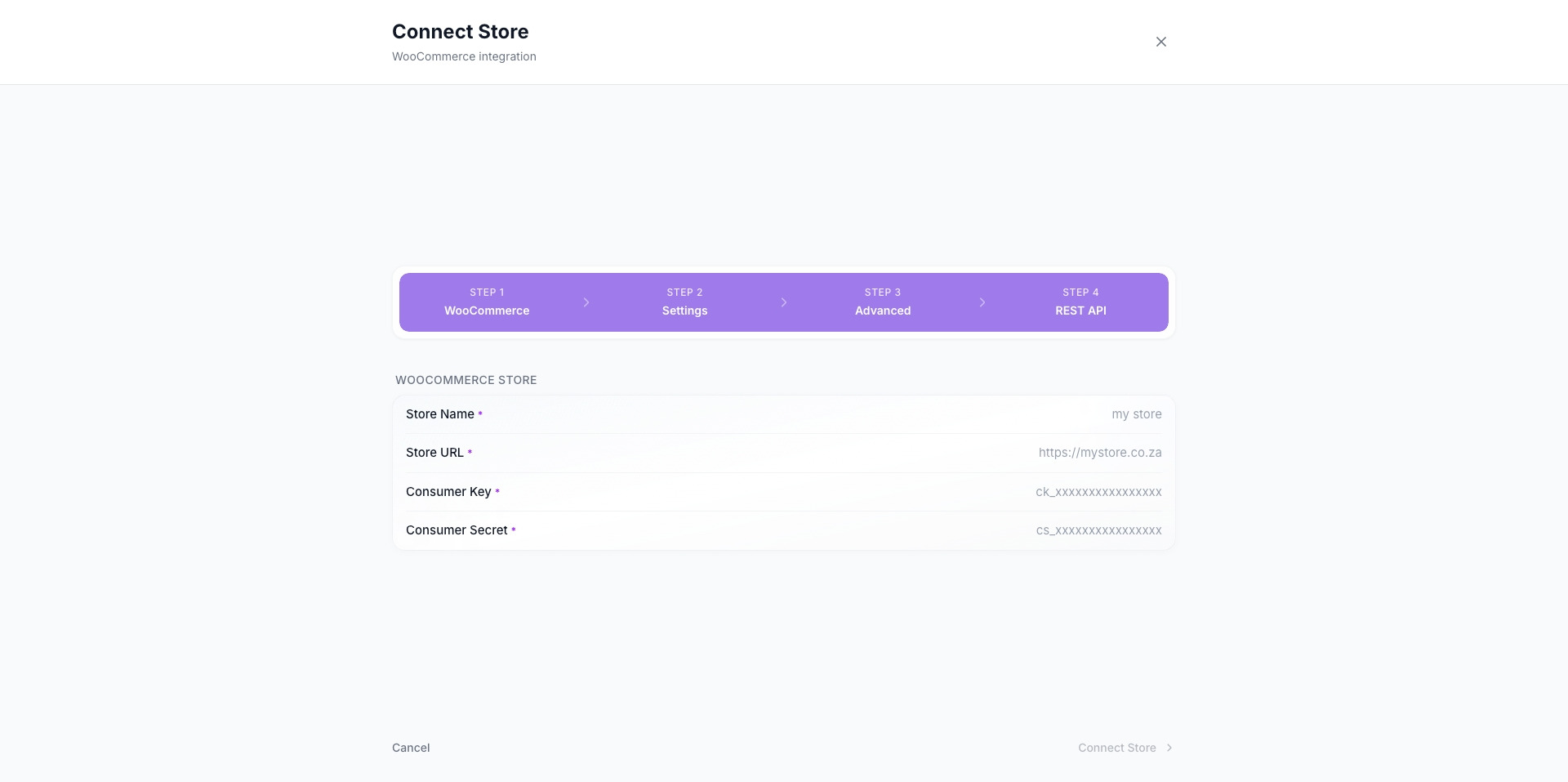
Store NameA friendly name for your store
Store URLYour WooCommerce store address
Consumer KeyAuthenticates TSeller with WooCommerce
Consumer SecretSecures the API connection
Step-by-Step
1
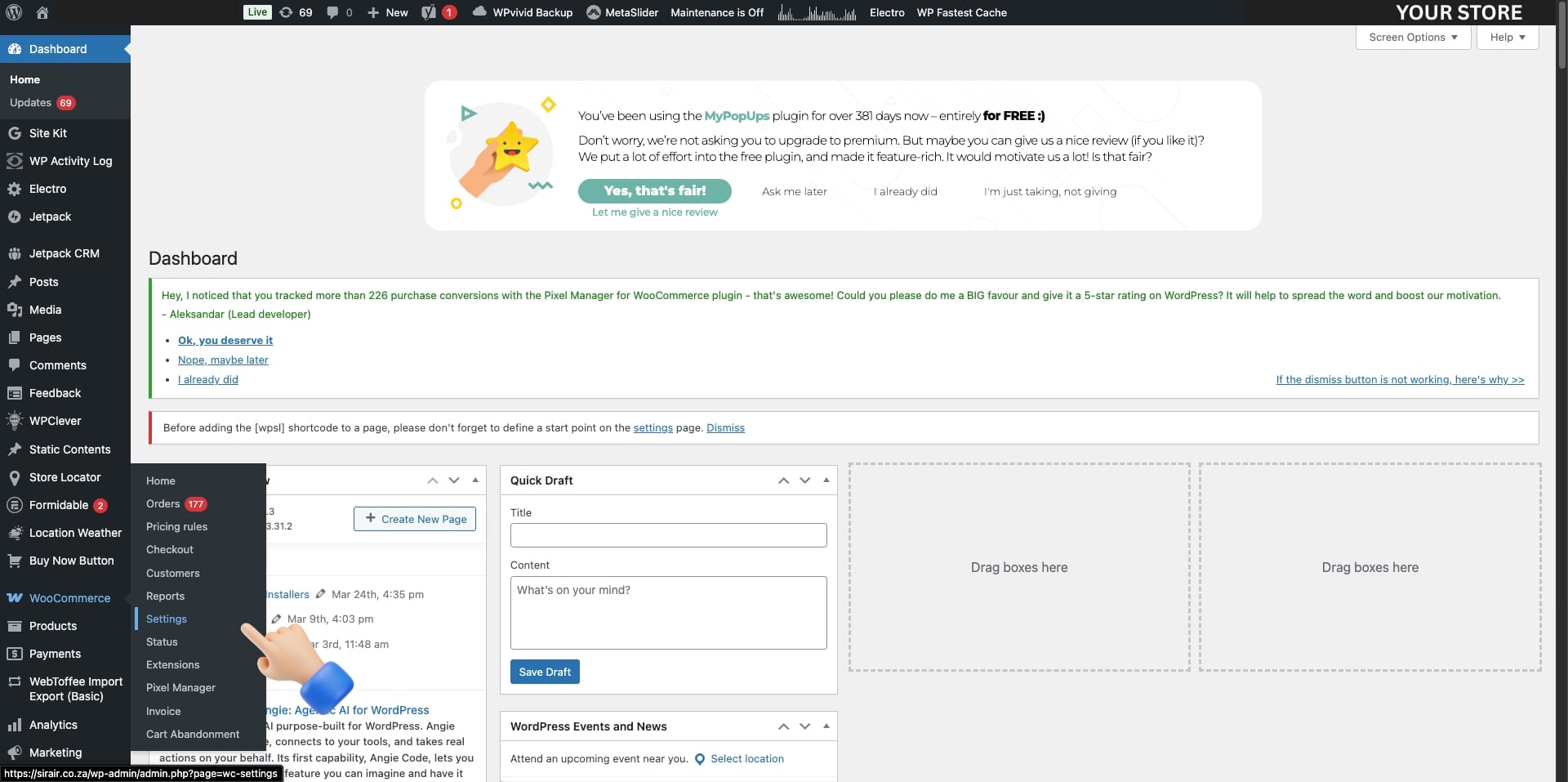
Open WooCommerce Settings
Sign in to your WordPress Admin. In the sidebar, click WooCommerce, then click Settings.
2
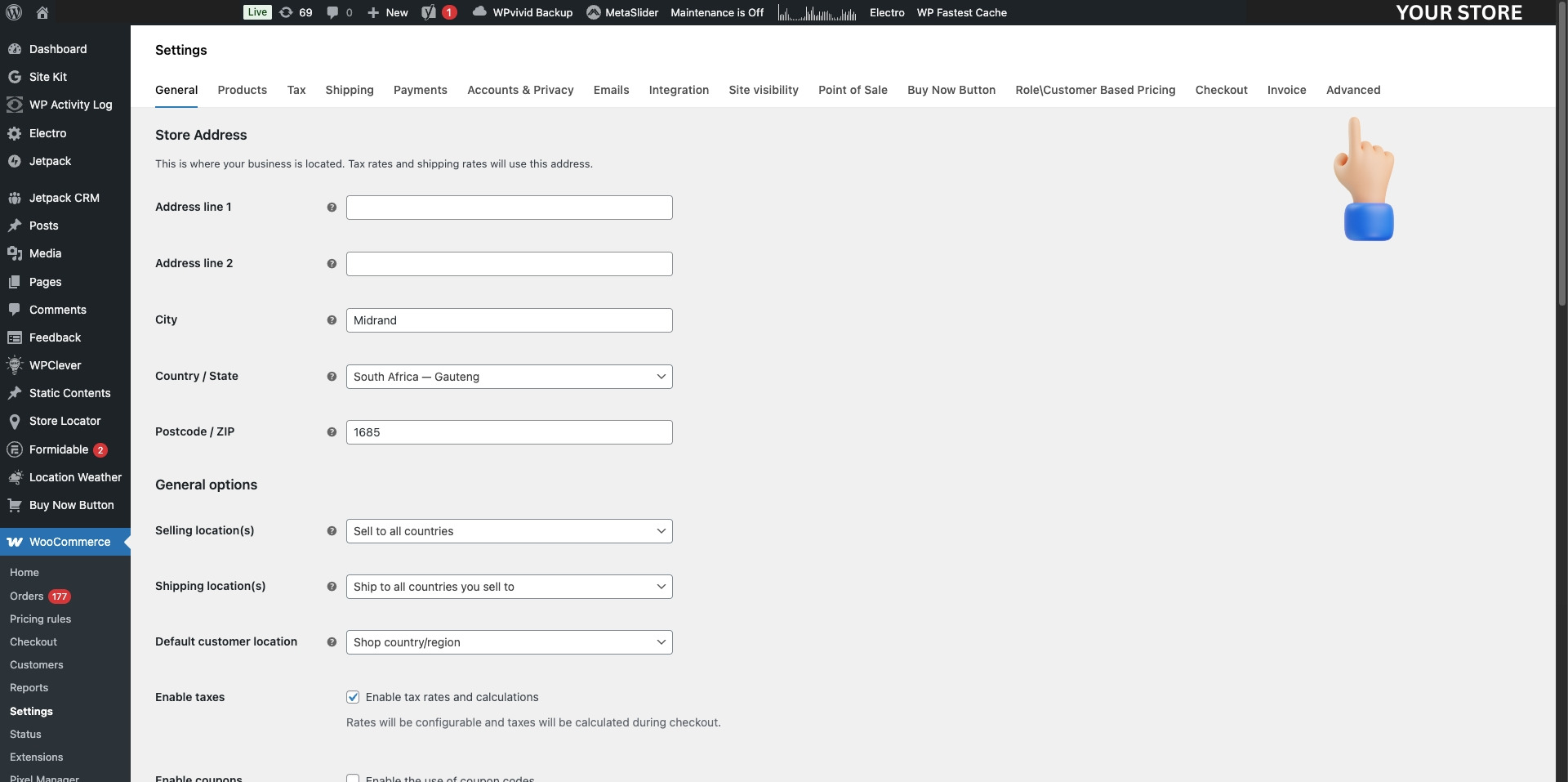
Open the Advanced tab
In the WooCommerce Settings page, click on the Advanced tab at the top.
3
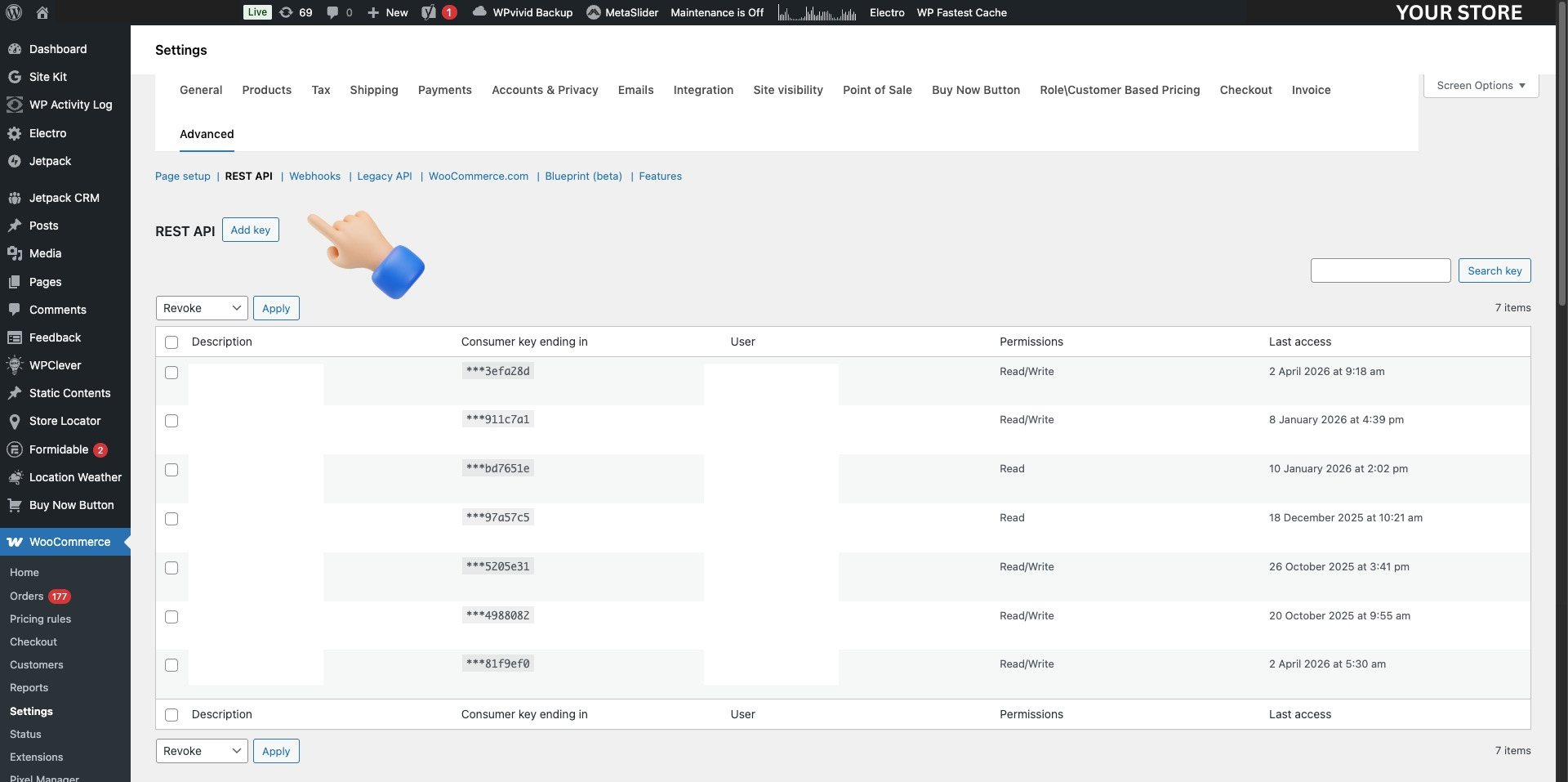
Navigate to REST API
Under the Advanced tab, click on the REST API sub-tab.
4
Add a new API key
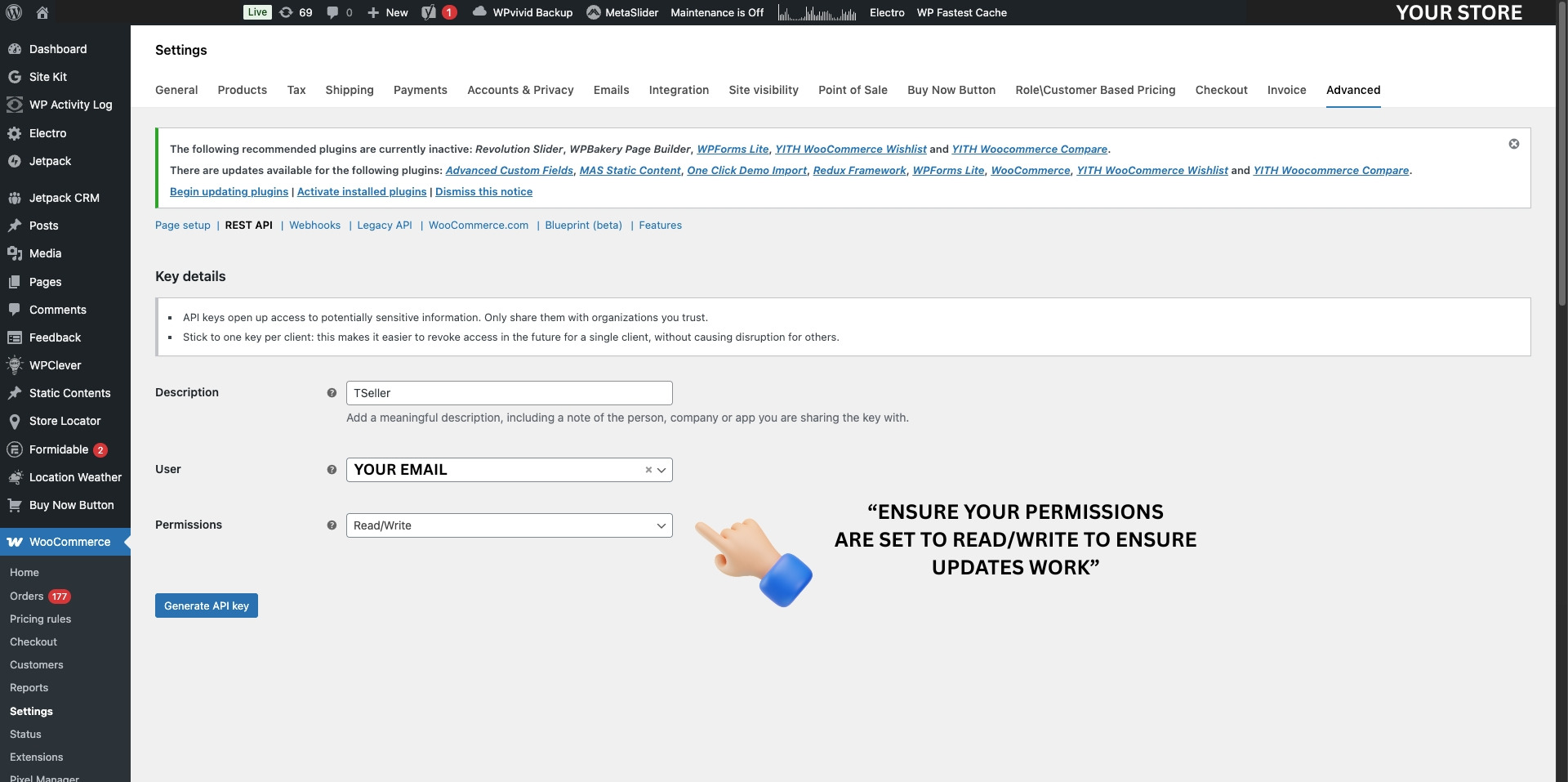
Click Add key to create a new set of API credentials. Enter TSeller as the Description and set the Permissions to Read/Write. Then click Generate API key.
5
Copy your Consumer Key and Consumer Secret
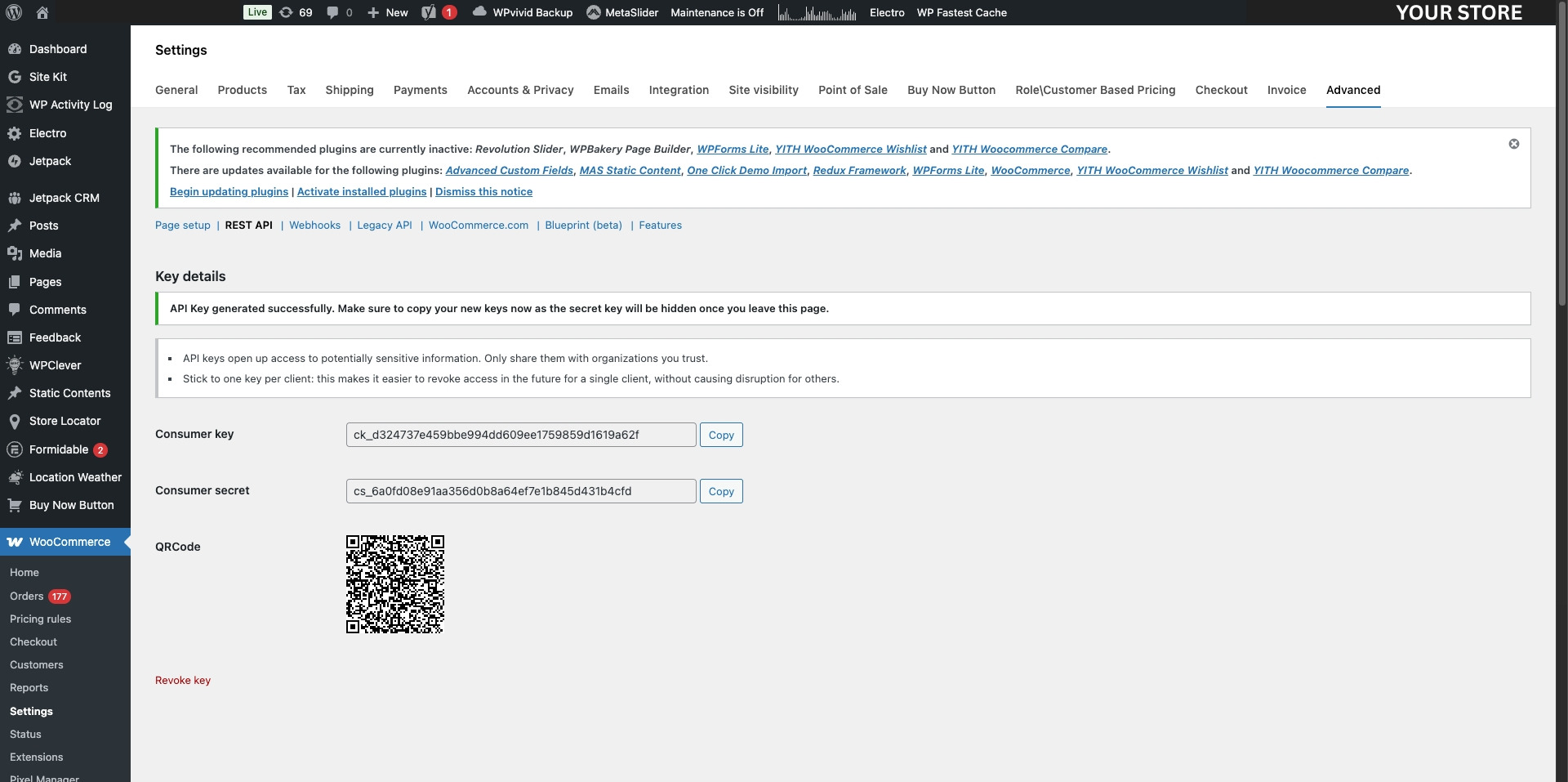
WooCommerce will display your Consumer Key and Consumer Secret. Copy both immediately — the Consumer Secret will not be shown again.
6
Connect in TSeller
Go to TSeller › Settings › Integrations. Click Connect Store › WooCommerce, then enter your Store Name, Store URL, Consumer Key, and Consumer Secret.