
Claude Tutorial
ChatGPT Tutorial
Required Credentials
What You'll Need
Step-by-Step
Open the AI Data Connector page
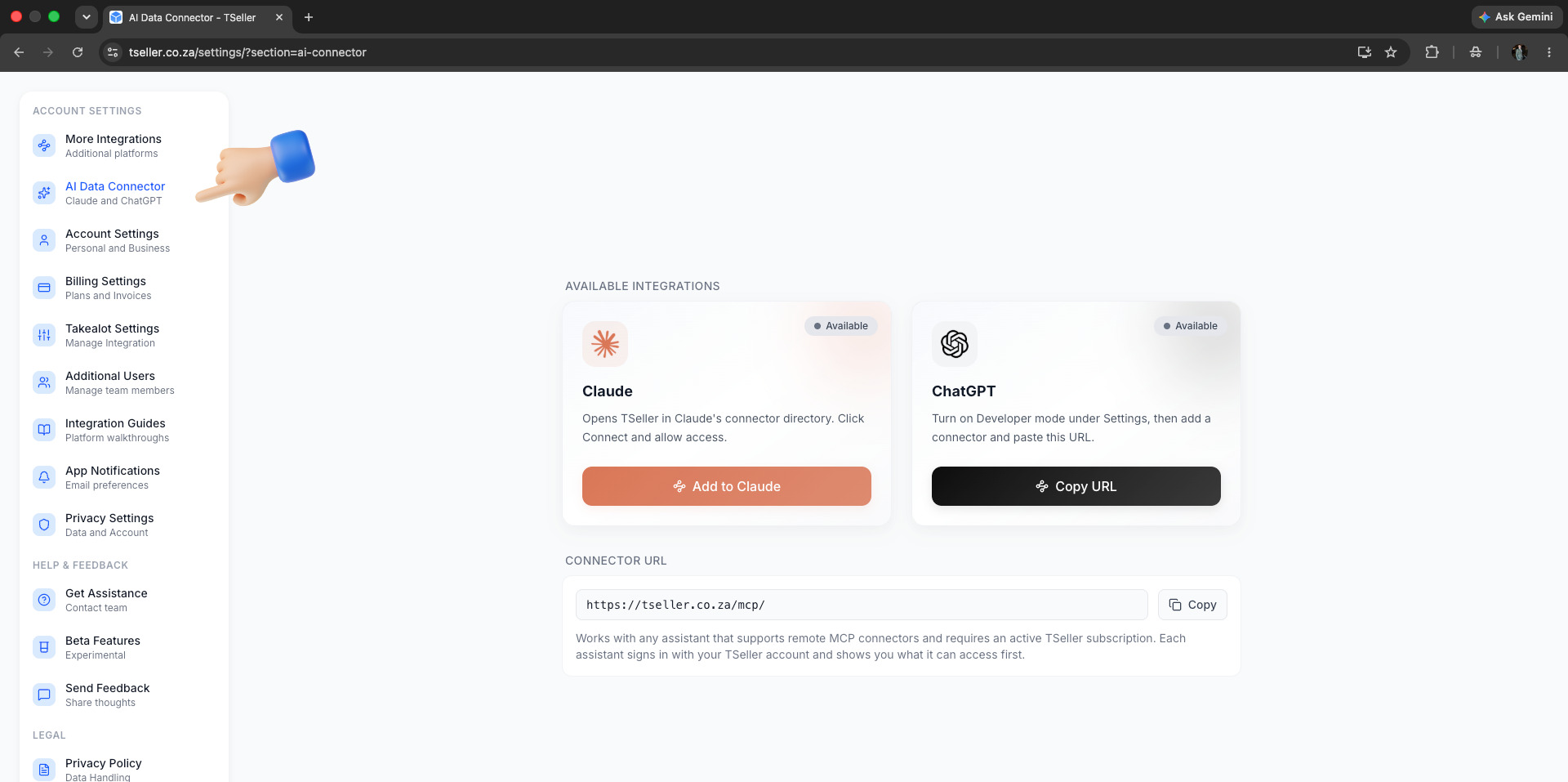
Sign in to TSeller and go to Settings › AI Data Connector. You will see a card for each assistant you can connect.
Add the connector to Claude
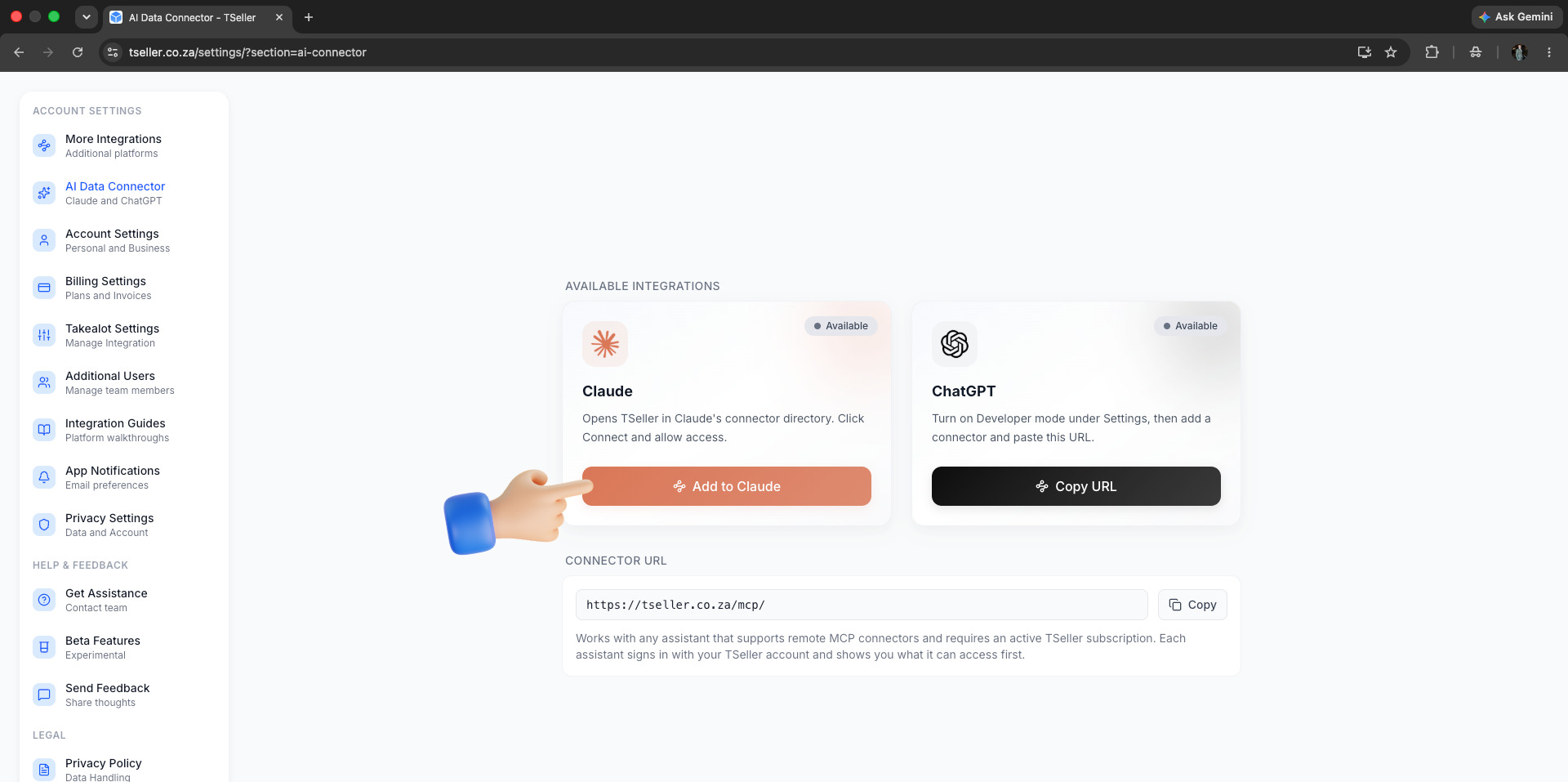
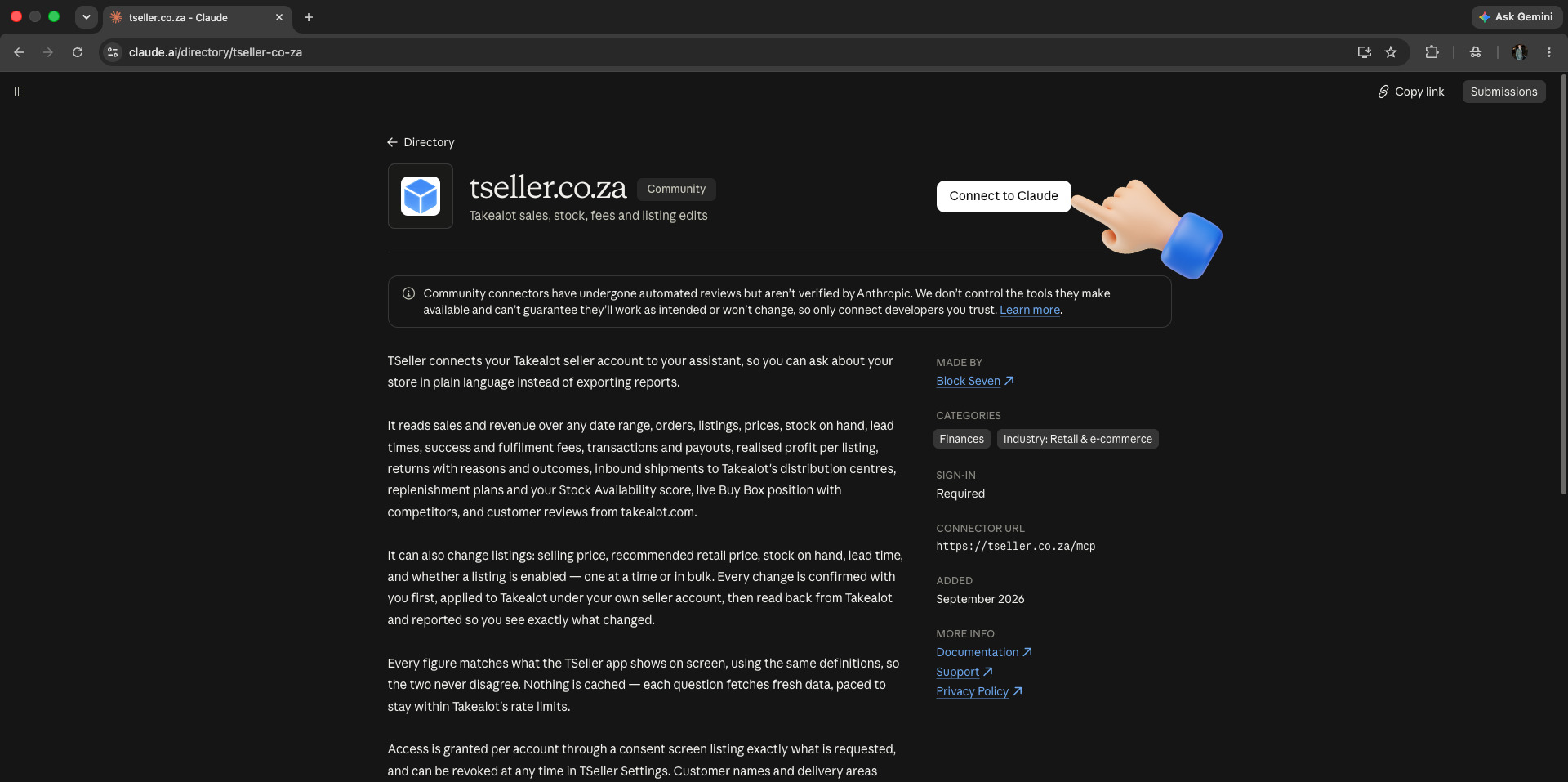
Click Add to Claude. TSeller opens in Claude's connector directory, so you only need to click Connect to Claude. To find it by hand, open Customize › Connectors in Claude, browse the directory and search for TSeller.
Add the connector to ChatGPT
ChatGPT lists TSeller as a plugin that you add yourself, using the connector URL. It takes about a minute.
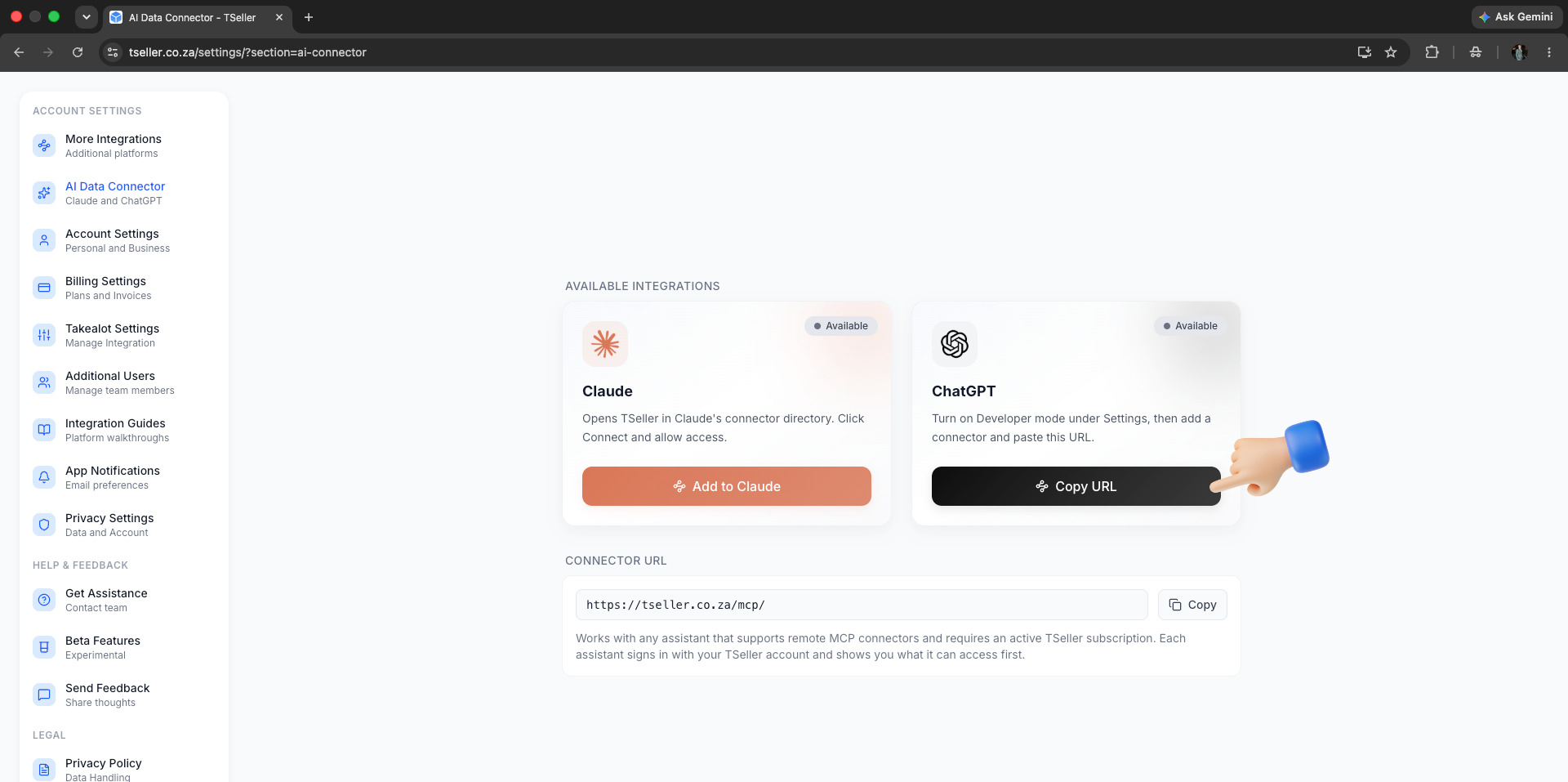
1. On the ChatGPT card in Settings › AI Data Connector, click Copy URL. You will paste it into ChatGPT in a moment.
2. In ChatGPT, click your profile picture at the bottom left and choose Settings.
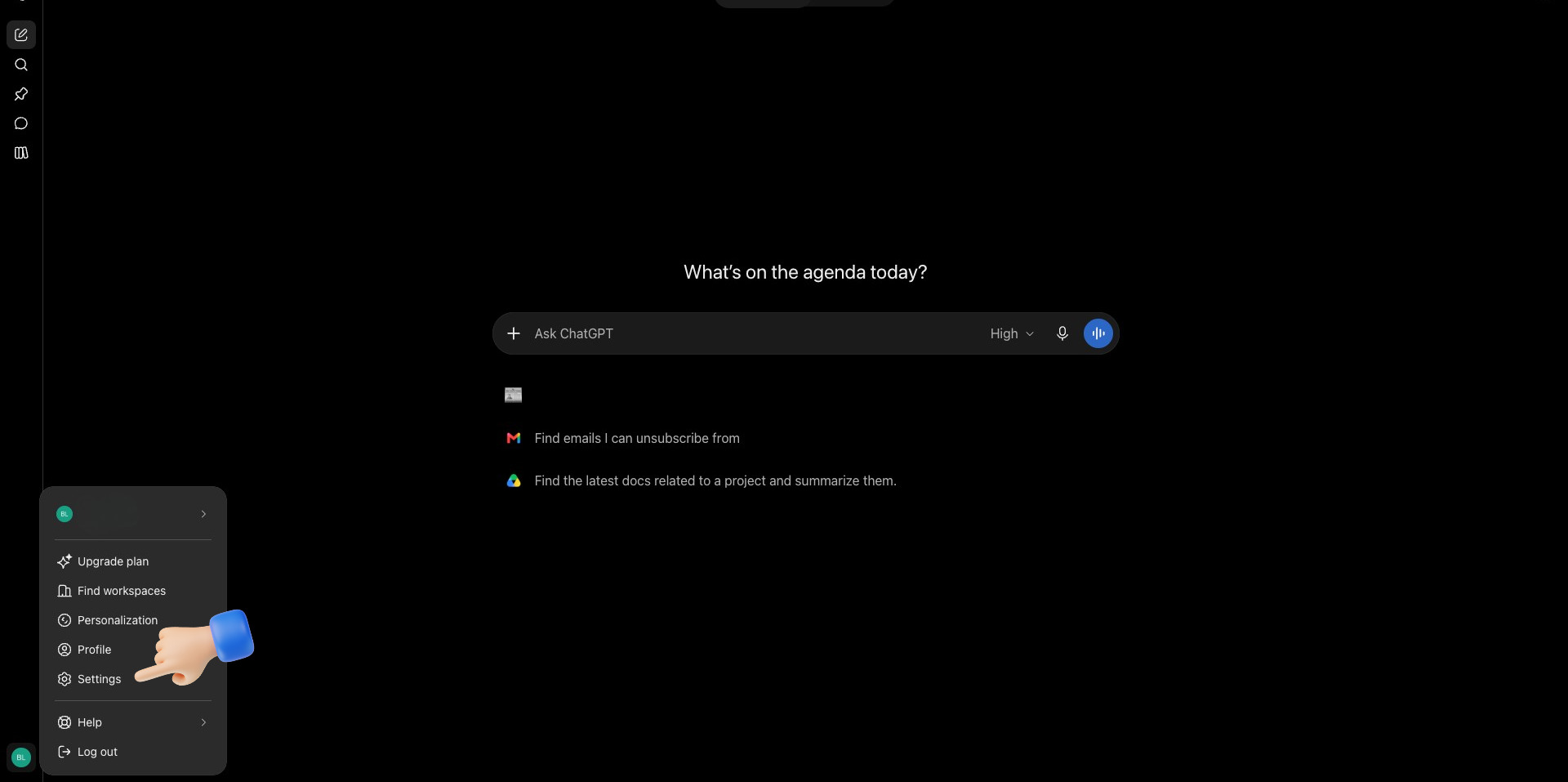
3. Under Integrations, click Plugins, then click Browse directory at the top right.
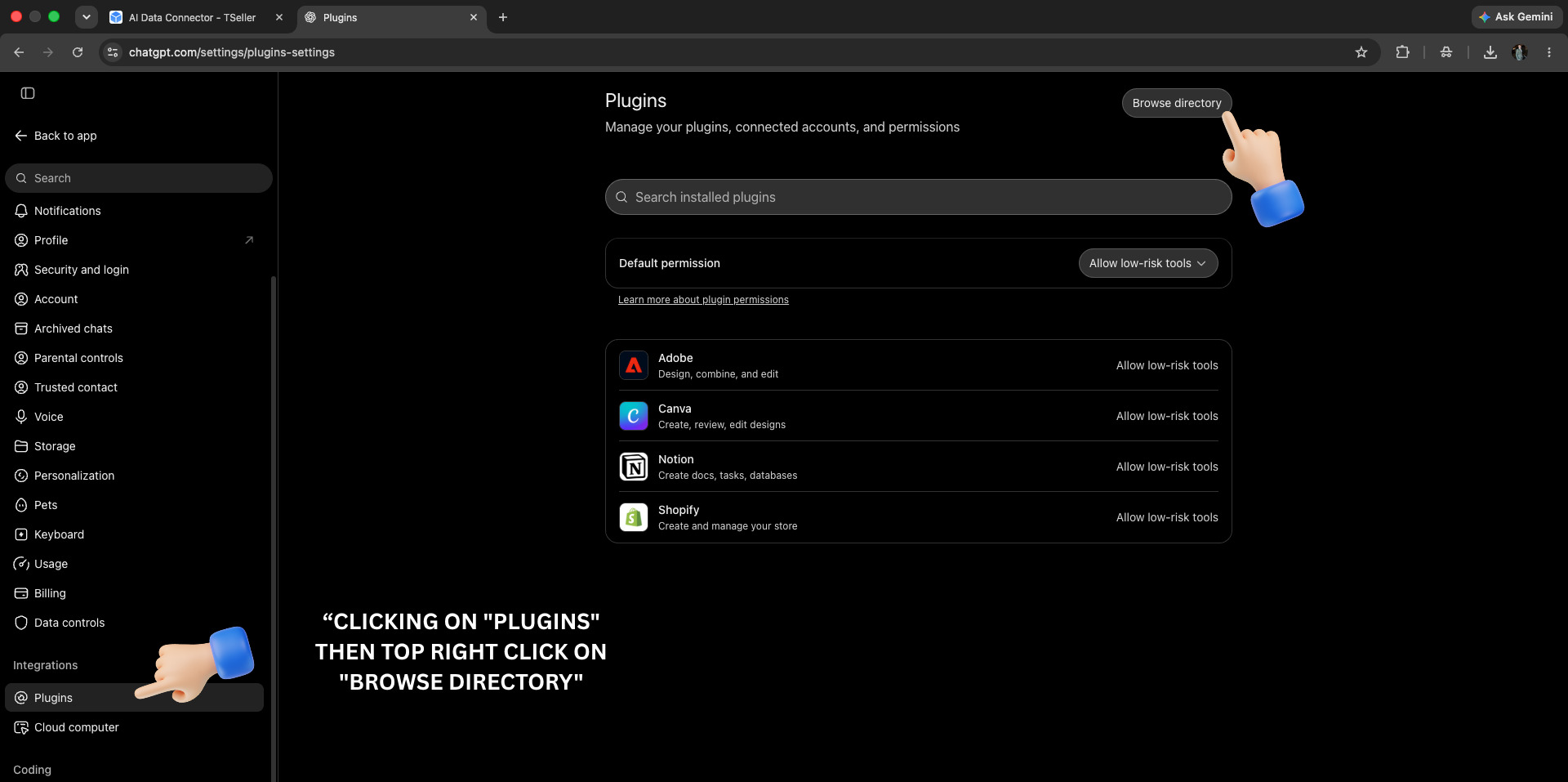
4. Click Add at the top right and choose Create custom MCP server.
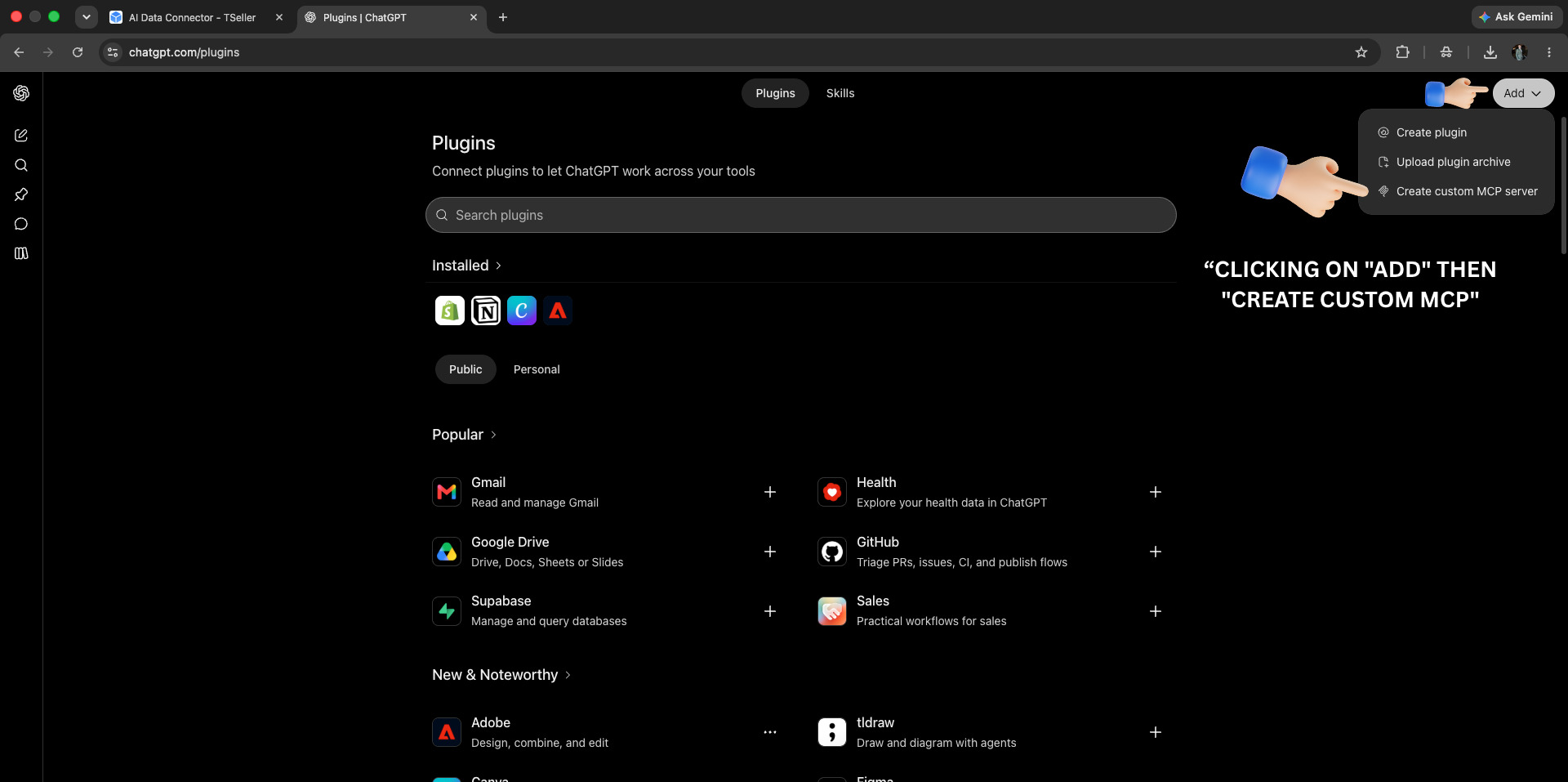
5. Fill in the form: enter TSeller as the Name, leave Connection on Server URL and paste the URL you copied, and keep Authentication on OAuth. The icon and description are optional. Tick I understand and want to continue, then click Create as a plugin.
6. ChatGPT shows a Connect TSeller summary. Click Continue to TSeller to sign in.
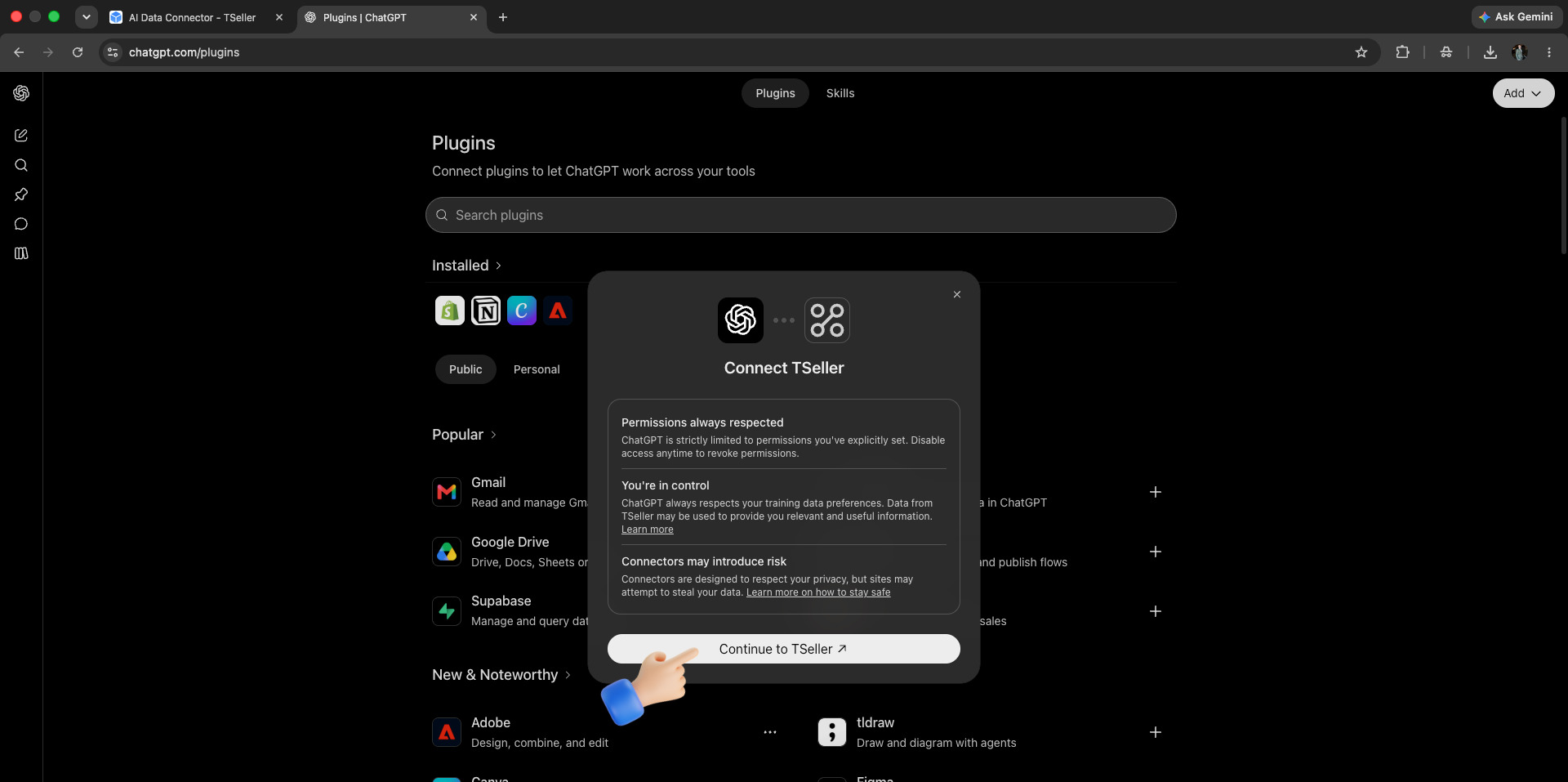
ChatGPT Plus is all you need to connect, with developer mode turned on. Pro isn't required. On Plus and Pro, OpenAI lets custom connectors read data only, so ChatGPT can answer questions about your store but can't change prices, stock, Buy Box rules or ads. For changes from ChatGPT, OpenAI requires a Business, Enterprise or Edu plan.
Approve access
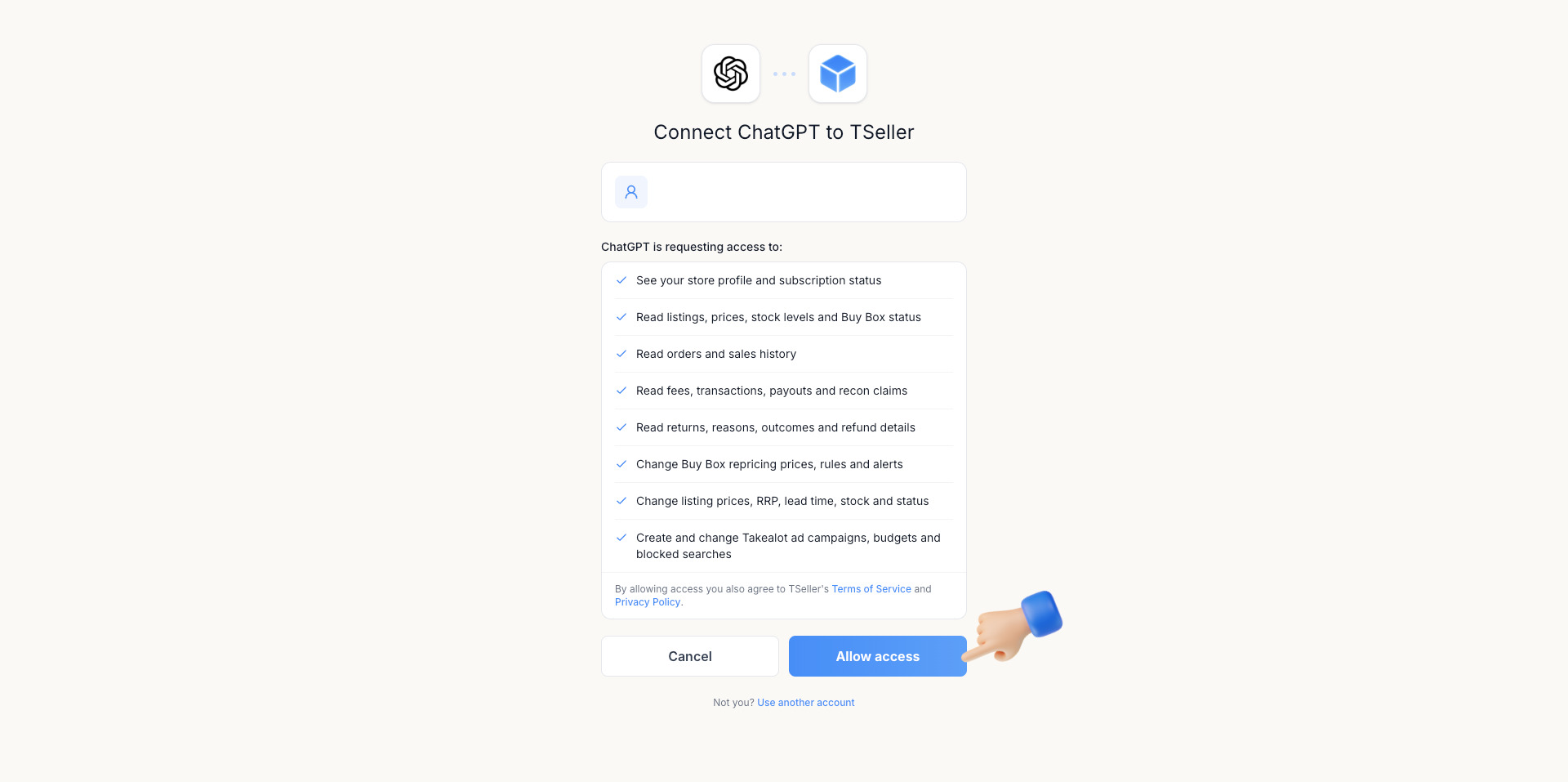
Your assistant sends you to a TSeller approval screen, such as Connect ChatGPT to TSeller. It shows the TSeller account being connected and lists everything the assistant is requesting access to, from reading listings, orders, fees and returns to changing prices, Buy Box rules and ad campaigns. If the account is wrong, click Use another account. Otherwise click Allow access, which also accepts TSeller's Terms of Service and Privacy Policy. If the screen shows a red Unverified app badge and you did not start this yourself, click Cancel.
Start asking questions
Go back to your assistant and ask about your store in plain language — “How did my sales do last month compared to the month before?”, “Which listings are out of stock but still selling?”, or “Which products am I losing the Buy Box on, and to whom?”
What It Can Do
Changes are made on the marketplace under your seller account and take effect immediately. Your assistant is instructed to confirm before it changes anything, and never to change a price you did not name. After every Takealot change TSeller reads the listing back from Takealot and reports what actually changed. For an overview of everything the connector covers, read Claude & ChatGPT Connector.
Your Data
Full detail is in our Privacy Policy and Terms of Service.